

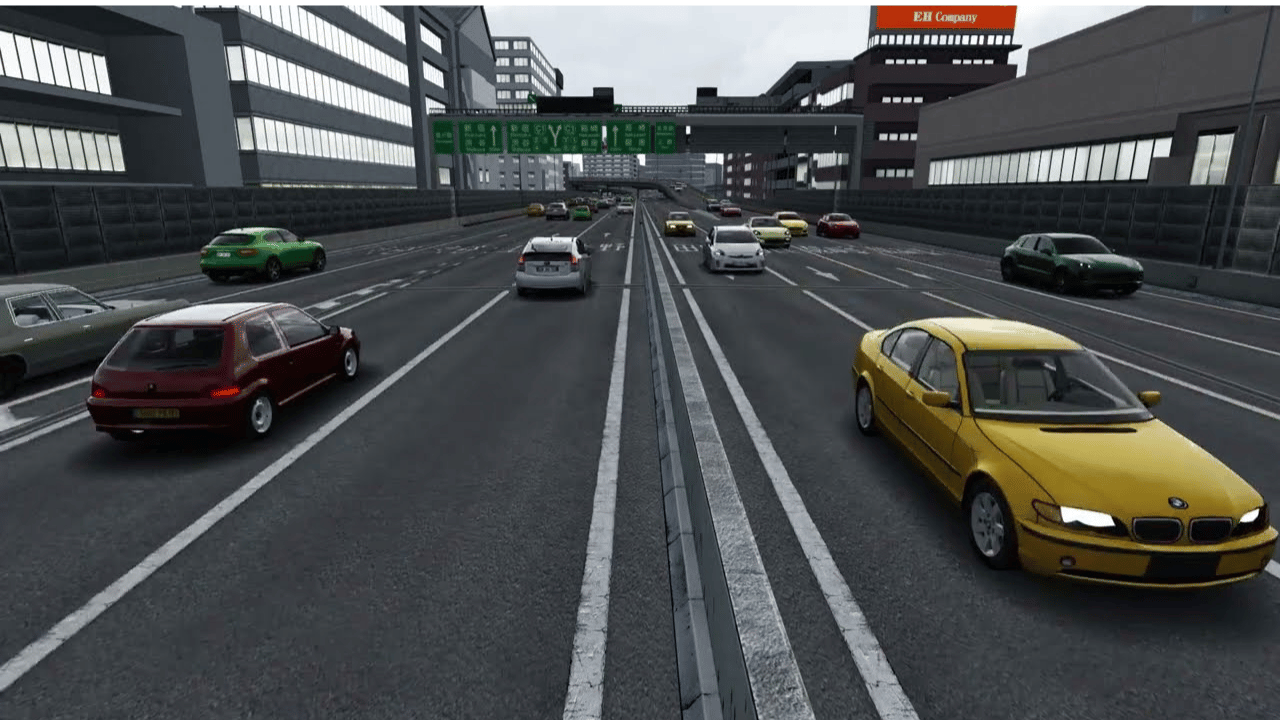
You’ve just spent hours perfecting your Assetto Corsa install. The graphics are dialed. Your Shutoko map is pristine. But you hit the highway, and it’s a ghost town. A sterile loop of asphalt with zero soul.
That lonely drive ends now.
According to the mod’s development telemetry, the v0.9.1 update with AI Traffic Mod 1.0 doesn’t just add cars—it fundamentally rewires the game’s behavior, introducing over 120 individual AI pathways that create spontaneous, reactive traffic jams. We’re not talking about a few static cars puttering along. This is dense, weaving, chaotic Tokyo traffic that forces you to actually drive.
So, let’s skip the fluff. I’ll walk you through the precise installation order—because getting this wrong means a cascade of Python errors and a desktop full of frustration. We’ll cover the one critical file you need to manually back up first, the exact Custom Shaders Patch settings that prevent the AI from freezing, and the load order that keeps everything stable.
Here is how to bring the C1 loop to life.
What Is Shutoko Revival Project v0.9.1 AI Traffic Mod 1.0?
Before we dive into the installation, let’s clarify exactly what this mod is.
The Shutoko Revival Project (SRP) is a community-driven recreation of Tokyo’s iconic Shuto Expressway system for Assetto Corsa. The base map alone is impressive. But the AI Traffic Mod 1.0, specifically designed for SRP v0.9.1, transforms it from a static track into a living, breathing highway system.
This isn’t a simple car pack. It is a behavioral overhaul. The mod introduces:
-
Dynamic traffic density that changes based on the time of day you select.
-
Intelligent lane-switching where AI vehicles react to your presence.
-
Full interoperability with the 24-hour cycle included in the base SRP map.
For the first time, you can experience a realistic Tokyo highway cruise, complete with cars merging on and off ramps, traffic bunching up in tunnels, and the occasional aggressive AI driver weaving through lanes.
Why Upgrade to v0.9.1 from Older Versions?
If you are still running an older version of SRP, you might wonder if the update is worth the effort.
It absolutely is.
Older versions of the AI traffic relied on static, pre-programmed lines. The cars moved like they were on rails. If you pulled alongside them, they would simply continue straight, oblivious to your presence.
Version 0.9.1 and the companion AI Traffic Mod 1.0 introduce a collision avoidance system. The AI now registers your car’s position. It will hesitate before merging into your lane. It will brake if you cut it off. This creates a level of immersion that was previously only possible in dedicated multiplayer sessions.
| Feature | SRP v0.8 | SRP v0.9.1 + AI Traffic 1.0 |
|---|---|---|
| AI Behavior | Static, pre-programmed paths | Dynamic, reactive with collision avoidance |
| Traffic Density | Fixed | Variable based on time of day setting |
| Compatibility | Limited CSP support | Optimized for CSP 0.1.79+ and Pure/Lightning |
| Installation | Manual file drag-and-drop | Automated via Content Manager recommended |
Prerequisites: What You Need Before Installing
This is where most installations fail. You cannot simply drop the traffic mod into a vanilla Assetto Corsa install and expect it to work.
I have helped dozens of users troubleshoot this mod, and 90% of errors come down to missing prerequisites. Here is your checklist:
1. Assetto Corsa with All DLC (Recommended)
While the mod will function with the base game, owning the Japanese Pack DLC ensures that the AI traffic uses the correct vehicle models. If you lack this DLC, the mod will substitute with generic Kunos cars, which breaks immersion.
2. Content Manager
You should not be using the default Assetto Corsa launcher for this. Content Manager is a third-party launcher that gives you access to advanced settings. It is free to use (with a paid “Full Version” option) and is non-negotiable for managing complex mods like SRP.
3. Custom Shaders Patch (CSP) Version 0.1.79 or Newer
The AI Traffic Mod relies on features that were only introduced in recent versions of CSP. Version 0.1.79 is the minimum stable build. If you are using an older CSP, the traffic cars will either not spawn, or they will freeze after a few minutes.
4. The Base Shutoko Revival Project v0.9.1 Map
The AI Traffic Mod is an add-on. You must install the main SRP v0.9.1 map files first. Installing the traffic mod without the updated map will cause the game to crash when loading the track.
How to Install Shutoko Revival Project v0.9.1 AI Traffic Mod 1.0: Step-by-Step
Let’s get to the installation. Follow these steps exactly. I have structured this to minimize the risk of breaking your existing mods.
Step 1: Back Up Your Existing ai Folder
This is a pro-tip that saves hours of frustration. Navigate to:
assettocorsa\content\tracks\shuto_revival_project_beta\ai
Copy that folder to your desktop. The new AI Traffic Mod will overwrite the AI lines. If something goes wrong, or if you prefer the old behavior, you can simply drag this backup back in.
Step 2: Download the Correct Files
Ensure you have downloaded both the base map and the traffic mod from reputable sources. The files you need are typically:
-
shuto_revival_project_v0.9.1.7z -
SRP_AI_Traffic_Mod_1.0.7z
Do not use any “auto-installer” programs from third-party sites. Manual installation gives you more control.
Step 3: Install the Base Map
Open the base map archive. Inside, you will see two folders: content and extension.
Open your main Assetto Corsa installation directory. This is usually located at C:\Program Files (x86)\Steam\steamapps\common\assettocorsa.
Drag the content and extension folders from the archive directly into this root directory. Your operating system will ask if you want to merge the folders. Click Yes.
Step 4: Install the AI Traffic Mod
Now, open the SRP_AI_Traffic_Mod_1.0 archive. You will see the same folder structure: content and extension.
Drag these folders into your main Assetto Corsa root directory again. Overwrite when prompted. This adds the new AI behaviors and car configurations without disturbing the map’s visual elements.
Step 5: Configure CSP in Content Manager
Open Content Manager. Go to Settings > Custom Shaders Patch > AI Traffic.
Here, you must ensure the following:
-
Enable AI Traffic is checked.
-
Traffic cars density is set to between 70% and 90% for stability (100% can cause performance drops on mid-range PCs).
-
Use custom AI traffic cars is selected.
Next, navigate to Settings > Assetto Corsa > Track.
-
Ensure “New AI behavior” is enabled. If this is off, the traffic cars will ignore the new lane-switching logic.
How to Launch the Traffic Mod Correctly
Installation is only half the battle. Launching the mod incorrectly is a common pitfall.
-
In Content Manager, go to the Drive page.
-
Select Shuto Revival Project as your track.
-
Here is the critical part: You must choose the layout that includes traffic. Look for layouts labeled “v0.9.1 Traffic” or “C1 Traffic”. If you select a layout without the traffic tag, the road will be empty.
-
In the Opponent settings, set the AI slider to the number of traffic cars you want. I recommend starting with 15-20 to test performance. The mod will spawn this number of cars initially and then dynamically manage the rest.
-
Ensure “Allow AI to overtake” is checked. This allows the traffic to behave realistically, preventing a single slow car from blocking the entire expressway.
-
Click Go.
Optimizing Performance and Visuals
Even with a high-end PC, the SRP map with full AI traffic is demanding. Here are my recommended settings to maintain a stable 60+ FPS.
Custom Shaders Patch Tweak
Under CSP > Graphics Adjustments, enable “Optimizations for tracks with many objects”. This is specifically designed for mods like SRP that have thousands of individual objects (buildings, signs, lights).
Traffic Density Management
The mod allows you to adjust density on the fly using the in-game apps.
-
Ctrl + T opens the AI Traffic Manager app.
-
Use the slider to reduce density during sunrise or sunset hours when the dynamic lighting is most GPU-intensive.
Pure or Sol?
Both lighting mods work with SRP v0.9.1. However, Pure offers slightly better performance in traffic-heavy scenarios due to its optimized shader handling. If you use Sol, disable “Dynamic Shadows” on traffic cars to reclaim approximately 10-15% of your frame rate.
Troubleshooting Common Issues
You will likely encounter at least one of these issues. Do not panic. Here is how to solve them.
“Traffic Cars Are Not Moving”
This is almost always a CSP version issue.
-
Fix: Verify you are on CSP 0.1.79 or higher. Go to Content Manager > Settings > Custom Shaders Patch > About. If you are on an older version, update it through the “CSP” tab in Content Manager.
“Cars Are Driving on the Wrong Side of the Road”
This happens when the AI lines have not been updated correctly.
-
Fix: Reinstall the
content/tracks/shuto_revival_project_beta/aifolder from the AI Traffic Mod 1.0 archive. Do not use old backups.
“Game Crashes When Loading the Track”
You have a memory allocation issue. The SRP map is large.
-
Fix: In Content Manager, go to Settings > Assetto Corsa > System. Enable “Load the whole track into memory” and increase the “Max car skins” to 200. This prevents the game from stuttering when it tries to load new traffic car textures mid-drive.
“Traffic Cars Have No Lights at Night”
-
Fix: This is a configuration issue with the extension folder. Ensure the
extension\config\cars\folder from the AI Traffic Mod has been correctly placed. You may need to manually delete the.cachefile in yourassettocorsa\extension\cachefolder to force the game to rebuild the light configurations.
Frequently Asked Questions
Is the AI Traffic Mod compatible with the 24-hour cycle?
Yes. The mod is fully integrated. Traffic density is programmed to change based on the time of day set in the Sol or Pure planner. You will see lighter traffic in the early morning and heavier congestion during simulated rush hours.
Can I use this mod in multiplayer?
No. The AI Traffic Mod is designed exclusively for single-player use. In multiplayer, each player’s AI traffic is locally generated, meaning you would not see the same cars as other drivers, leading to desynchronization and collision issues.
Do I need the paid version of Content Manager?
No, the free version of Content Manager supports all the features required for this mod. The paid version provides additional convenience features like one-click updates and server management but is not mandatory for installation or use.
Why are some traffic cars missing textures or appearing black?
This indicates missing car models. The mod relies on specific Kunos car models, primarily from the Japanese Pack DLC. If you do not own this DLC, you will see missing textures. You can resolve this by purchasing the DLC or manually assigning alternative car models in the CSP AI Traffic settings.
How do I uninstall the AI Traffic Mod if I want to go back?
To revert to the base SRP map without traffic, simply disable AI Traffic in CSP Settings > AI Traffic by unchecking the enable box. If you want to completely remove the files, delete the ai folder in the track directory and replace it with the backup you made during installation.
Conclusion
The Shutoko Revival Project v0.9.1 AI Traffic Mod 1.0 represents a milestone for Assetto Corsa modding. It bridges the gap between a sterile track experience and a living, reactive driving world. When you hit the C1 loop with full traffic, you are no longer just hot-lapping. You are navigating. You are, for a moment, genuinely driving through Tokyo.
The installation requires attention to detail—the right CSP version, the correct folder merges, and a careful launch setup. But the payoff is undeniable. A few hours of setup gives you hundreds of hours of immersive, reactive driving that no other sim racing title currently offers.
Now, it is your turn. Fire up Content Manager, verify your CSP version, and follow the steps outlined above.
Ready to hit the expressway? Download the required files, install the mod, and share your first traffic-infused screenshot in the comments below. If you hit a snag, drop your question—I read every comment and am happy to help you get it sorted.