

Most virtual machines store their data in a standard virtual disk file, and that works fine for almost everything. But sometimes a workload needs direct access to a physical storage device instead. That’s exactly what raw device mapping solves. Here’s what it is, how it works, and when it actually makes sense to use.
Key Takeaways
- Raw Device Mapping (RDM) lets a virtual machine access a physical storage LUN directly, instead of through a standard virtual disk file.
- VMware offers two RDM modes: physical compatibility and virtual compatibility.
- RDM is common for clustering setups, SAN management tools, and workloads needing direct hardware access.
- Most standard workloads still perform better and remain easier to manage with a regular VMDK.
- RDM connects closely to broader storage strategy, including RAID configurations and VDI deployments.
What Is Raw Device Mapping?
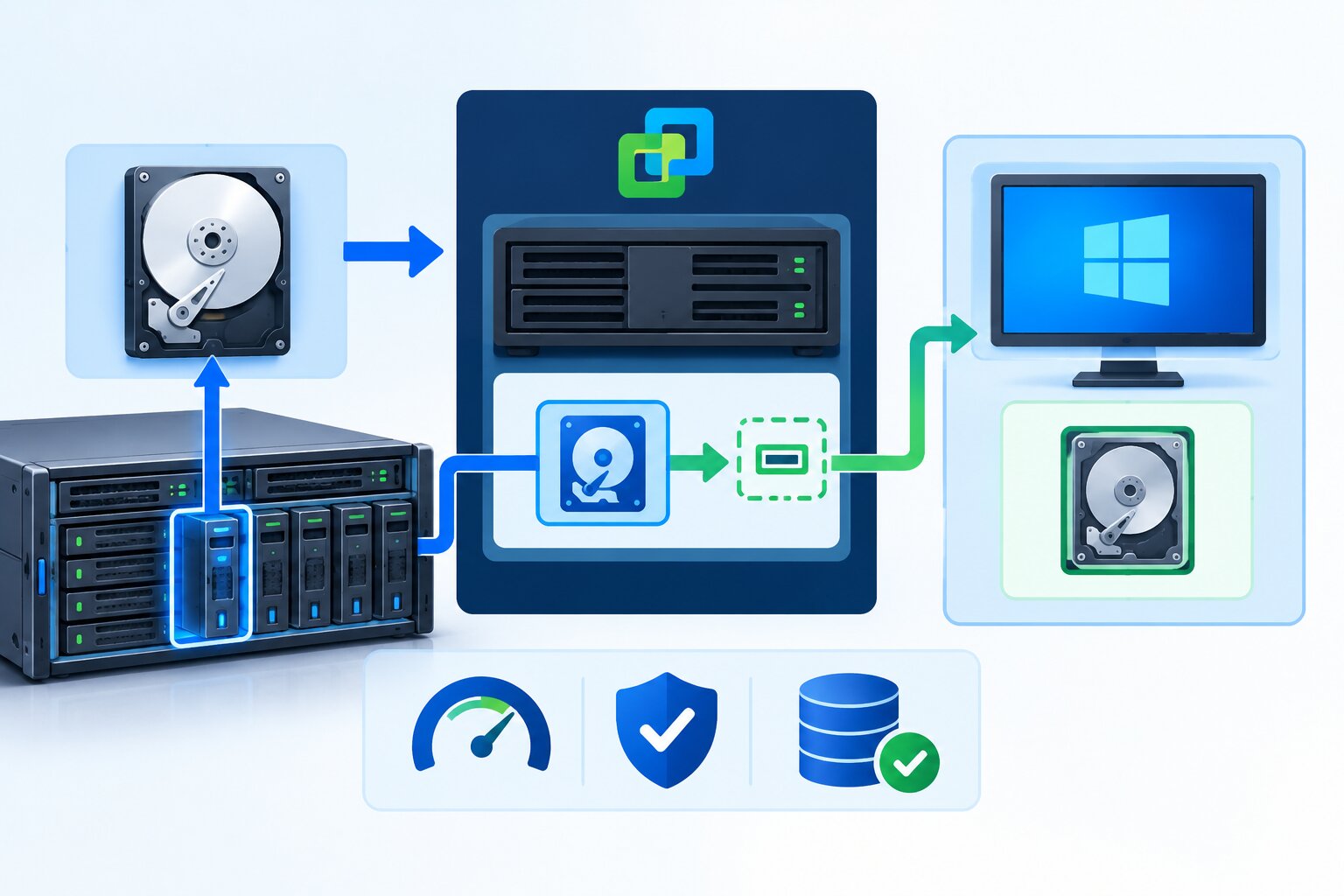
Raw Device Mapping (RDM) is a VMware feature that lets a virtual machine access a physical storage LUN directly, rather than through a standard virtual disk file (VMDK). Instead of the hypervisor abstracting the storage layer completely, RDM creates a mapping file that acts as a proxy, passing I/O requests straight through to the underlying physical device. VMware’s own documentation positions RDM as a specialized tool for specific use cases, not a general replacement for standard virtual disks. Related concepts include the VMDK, LUN (Logical Unit Number), SAN storage, and the hypervisor itself.
In simple terms, a normal virtual disk is a file that lives inside a datastore. An RDM, on the other hand, gives the virtual machine something closer to direct access to the actual physical storage device.
How Raw Device Mapping Works
RDM uses a small mapping file to connect a virtual machine to a physical LUN, and that mapping file behaves very differently from a standard virtual disk.
- Mapping file creation — VMware creates a small RDM file that acts as a proxy, pointing to the actual physical LUN rather than storing data itself.
- Direct I/O path — Read and write operations pass through the mapping file to the physical device, largely bypassing the usual virtual disk abstraction layer.
- Metadata management — The mapping file also stores metadata for managing and locking the mapped device, which VMware uses for features like snapshots in virtual compatibility mode.
- LUN presentation — The physical LUN still needs to be properly zoned and presented to the ESXi host before an RDM can reference it.
Physical vs. Virtual Compatibility Mode
VMware offers two distinct RDM modes, and choosing the right one depends entirely on what the workload actually needs.
Physical compatibility mode
This mode passes almost all SCSI commands directly to the physical device, with minimal virtualization layer involvement. It works well for clustering software or SAN management tools that need to see the device almost exactly as it would appear on physical hardware.
Virtual compatibility mode
This mode adds more of VMware’s virtualization layer on top of the physical device, which enables features like snapshots. As a result, it behaves more like a standard virtual disk while still providing direct LUN access underneath.
Choosing between them
Physical mode suits workloads that specifically need hardware-level SCSI commands. Virtual mode suits workloads that want RDM’s direct access benefits while keeping standard VMware features like snapshots available.
RDM vs. Standard VMDK: Comparison
| Feature | Raw Device Mapping (RDM) | Standard VMDK |
|---|---|---|
| Storage access | Near-direct access to physical LUN | Fully abstracted through datastore file |
| Snapshot support | Virtual mode only | Fully supported |
| Common use case | Clustering, SAN tools, specific hardware features | General-purpose VM storage |
| Management complexity | Higher | Lower |
| Portability | More restricted | Easier to move between hosts/datastores |
When to Use Raw Device Mapping
“RDM has a real place in specific architectures, but I’d caution against defaulting to it. Most teams that reach for RDM out of habit end up with more management overhead than they actually needed.” — Alan Foster, Senior Virtualization Engineer, Enterprise Infrastructure Solutions, 2025.
RDM makes sense in a fairly narrow set of scenarios. Clustering software that requires direct SCSI reservations often needs it. So do certain SAN-based backup or replication tools that expect to see a physical LUN rather than a virtualized file. Outside of those cases, a standard VMDK usually delivers similar performance with far less operational complexity, and it fits more naturally into broader storage strategies like RAID 50 that manage redundancy at the physical layer.
How to Configure Raw Device Mapping
- Confirm LUN presentation — Make sure the target LUN is properly zoned and visible to the ESXi host before attempting to create the RDM.
- Choose the compatibility mode — Decide between physical and virtual compatibility mode based on the workload’s specific requirements.
- Create the RDM through vCenter — Add a new hard disk to the virtual machine, then select the raw device mapping option and point it to the target LUN.
- Assign the mapping file location — Choose where VMware stores the small RDM mapping file, typically within an existing datastore.
- Validate the configuration — Confirm the virtual machine can read and write to the mapped device correctly before deploying it to production.
Frequently Asked Questions
What does RDM stand for in VMware?
RDM stands for Raw Device Mapping, a VMware feature that lets a virtual machine access a physical storage LUN directly instead of through a standard virtual disk file.
Does RDM improve performance compared to a VMDK?
Performance differences are typically minimal for most workloads. RDM’s main value comes from direct hardware access features, not raw speed improvements over a well-configured VMDK.
Can you take snapshots of an RDM disk?
Yes, but only in virtual compatibility mode. Physical compatibility mode does not support VMware snapshots, since it passes SCSI commands too directly to the device.
Is RDM still relevant with modern storage technologies?
Yes, though its use cases have narrowed over time as VMware has added more native features to standard virtual disks. RDM remains relevant primarily for clustering and specific SAN management tools.
What happens to data if an RDM mapping file is lost?
The actual data lives on the physical LUN, not in the mapping file itself, so losing the mapping file doesn’t destroy data. However, VMware needs the mapping file recreated correctly to restore access to that LUN.
Conclusion
Raw Device Mapping gives VMware administrators a way to connect virtual machines directly to physical storage when a workload specifically needs it, whether that’s for clustering, SAN management tools, or hardware-level SCSI access. For everything else, a standard VMDK remains the simpler, more portable choice. Understanding the difference between physical and virtual compatibility mode, and knowing when RDM actually solves a real problem, helps avoid adding unnecessary complexity to a virtualized environment.
For related reading, see our guides on RAID 50, advantages of VDI, and server-based computing.