

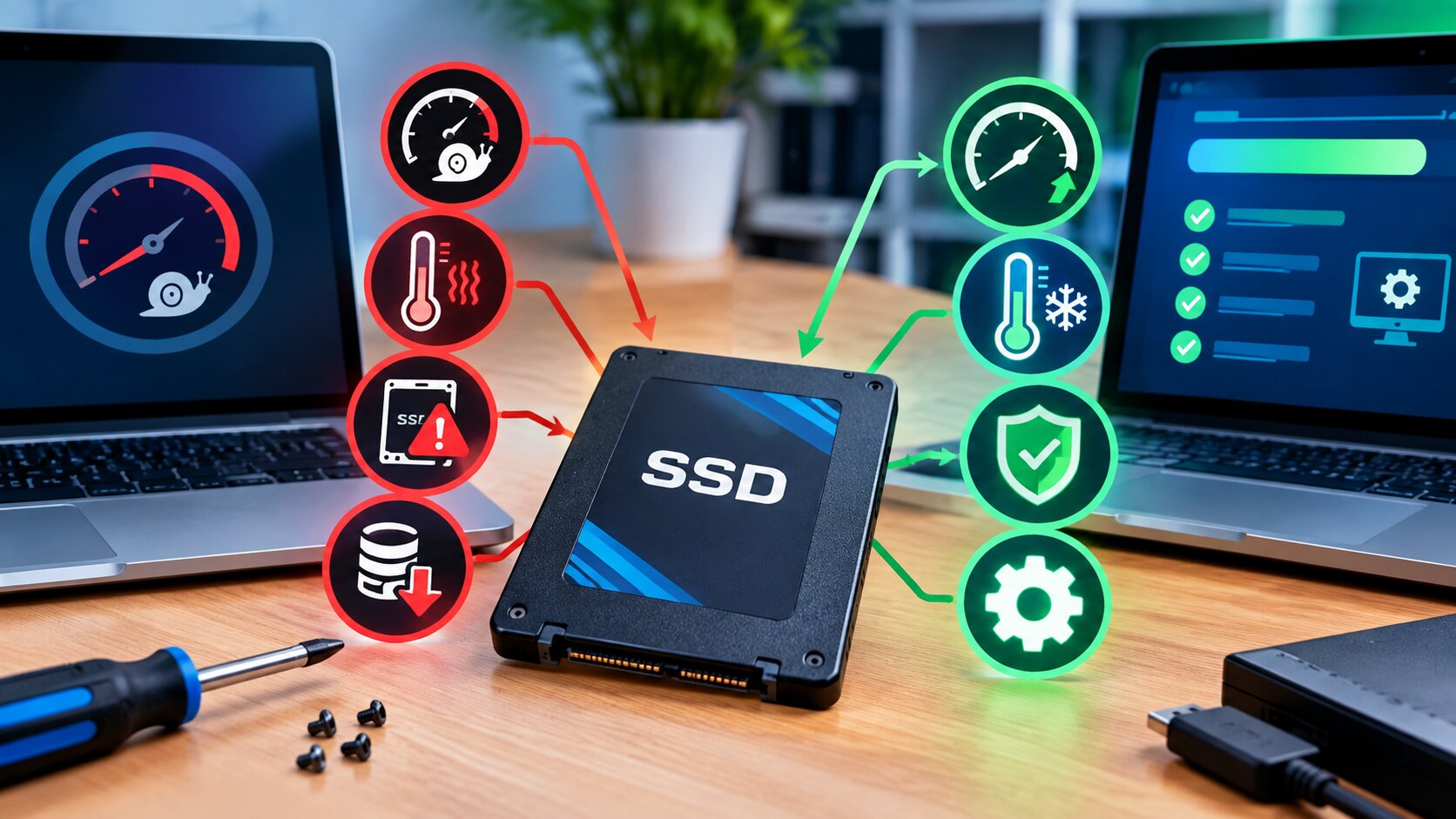
An SSD that felt lightning fast on day one can quietly slow down over months of use. Unlike a mechanical drive, the cause usually isn’t wear and tear you can see. It’s something happening at the controller or firmware level. Here’s what actually causes solid state drive performance issues, and the practical fixes that work for each one.
Key Takeaways
- SSD slowdowns usually stem from TRIM issues, insufficient free space, thermal throttling, or outdated firmware.
- Solid state drive performance issues often build up gradually, not from a single dramatic failure.
- Keeping at least 10-20% of an SSD free significantly helps maintain write performance.
- Firmware updates fix many known performance bugs that manufacturers identify after release.
- These same principles apply at scale in enterprise storage, where RAID configurations and hierarchical storage management also depend on healthy underlying drives.
Why SSD Performance Degrades Over Time
Unlike mechanical hard drives, SSDs don’t slow down from moving parts wearing out. Instead, performance issues typically stem from how flash memory manages data internally. Storage industry testing consistently shows that SSD write speeds can drop noticeably once a drive fills beyond a certain capacity threshold, which is exactly why free space management matters so much. Related concepts include TRIM commands, wear leveling, garbage collection, and NAND flash memory cells.
In simple terms, an SSD writes new data faster to empty cells than to cells that already held data and need to be cleared first. As a drive fills up, it runs out of pre-cleared space, and performance drops as a direct result.
Common SSD Performance Issues and Their Fixes
Issue 1: TRIM not enabled or not functioning
TRIM tells the SSD which data blocks are no longer in use, so the drive can clean them up in advance rather than during an active write. Without TRIM working properly, write speeds gradually decline as unused data lingers in flash cells.
Fix: Confirm TRIM is enabled in your operating system settings, and verify your SSD firmware supports it correctly. Most modern operating systems enable TRIM by default, but it’s worth checking after a fresh install or drive replacement.
Issue 2: Insufficient free space
When an SSD fills up, especially beyond 80-90% capacity, write performance drops significantly, since the controller has fewer pre-cleared cells available for new data.
Fix: Keep at least 10-20% of total capacity free at all times. For drives running consistently near capacity, consider upgrading to a larger SSD rather than constantly managing tight storage margins.
Issue 3: Thermal throttling
SSDs, particularly high-performance NVMe drives, can overheat under sustained heavy workloads. When that happens, the controller intentionally slows down to prevent damage, which shows up as a sudden performance drop during intensive tasks.
Fix: Ensure adequate airflow around the drive, and consider a heatsink for NVMe drives handling heavy, sustained workloads. In data center environments, this ties directly into broader cooling infrastructure planning.
Issue 4: Outdated firmware
Manufacturers regularly release firmware updates that fix known performance bugs, improve TRIM handling, and optimize garbage collection algorithms discovered after the drive’s initial release.
Fix: Check the manufacturer’s website periodically for firmware updates, and apply them following the documented update process, since firmware updates on active drives carry some risk if interrupted.
Issue 5: Fragmented or inefficient partition alignment
Improperly aligned partitions, more common on older systems or after certain migration processes, can cause extra read/write operations that reduce overall performance.
Fix: Verify partition alignment using built-in disk management tools, and reformat with correct alignment settings if misalignment is detected, particularly after migrating from an older drive.
SSD Performance Issues: Quick Reference Table
| Issue | Common Cause | Primary Fix |
|---|---|---|
| Slow write speeds over time | TRIM not functioning properly | Verify TRIM is enabled in OS settings |
| Sudden performance drops | Insufficient free space | Maintain 10-20% free capacity |
| Throttling during heavy use | Thermal buildup | Improve airflow, add heatsink for NVMe |
| Inconsistent performance after updates | Outdated firmware | Apply manufacturer firmware updates |
| Slower than expected on migrated drives | Partition misalignment | Verify and correct partition alignment |
Why This Matters Beyond Personal Computers
“SSD performance issues that seem minor on a single laptop become a real operational problem at scale. In enterprise storage arrays, a handful of underperforming drives can bottleneck an entire system, even when the rest of the hardware is running fine.” — Marcus Bell, Enterprise Storage Systems Engineer, Data Infrastructure Solutions Group, 2025.
These same fundamentals scale up significantly in enterprise environments. A single SSD showing thermal throttling might be a minor inconvenience on a personal laptop, but the same issue across dozens of drives in a storage array can meaningfully impact application performance. This is part of why solid storage fundamentals matter alongside broader strategies like RAID configurations that depend on consistent underlying drive performance.
Frequently Asked Questions
Why does my SSD feel slower than when I first bought it?
This typically happens as the drive fills with data and TRIM has less pre-cleared space to work with, or as firmware ages without updates addressing known performance issues.
Does defragmenting help SSD performance?
No, and it can actually reduce the drive’s lifespan. Traditional defragmentation is designed for mechanical hard drives and provides no benefit for SSDs, which don’t suffer from the same type of fragmentation.
How much free space should I keep on an SSD?
Keeping at least 10-20% of total capacity free generally maintains good write performance, though the exact threshold varies somewhat by drive model and controller design.
Can thermal throttling permanently damage an SSD?
Throttling itself is a protective mechanism designed to prevent damage, so it typically doesn’t cause permanent harm. However, consistently running an SSD at high temperatures over a long period can accelerate wear.
Should I update SSD firmware if everything seems to be working fine?
Generally yes, since firmware updates often address performance and reliability issues that aren’t immediately obvious to the user, though it’s wise to back up data first as a precaution before any firmware update.
Conclusion
Solid state drive performance issues rarely come from a single dramatic failure. They build up gradually, from a full drive, disabled TRIM, thermal buildup, or outdated firmware. The good news is that most of these issues have straightforward fixes once identified correctly. Keep drives reasonably empty, confirm TRIM is active, manage heat, and stay current on firmware, and most SSDs maintain strong performance for years rather than degrading quietly in the background.
For related reading, see our guides on RAID 50, hierarchical storage management, and how to speed up a slow laptop.