

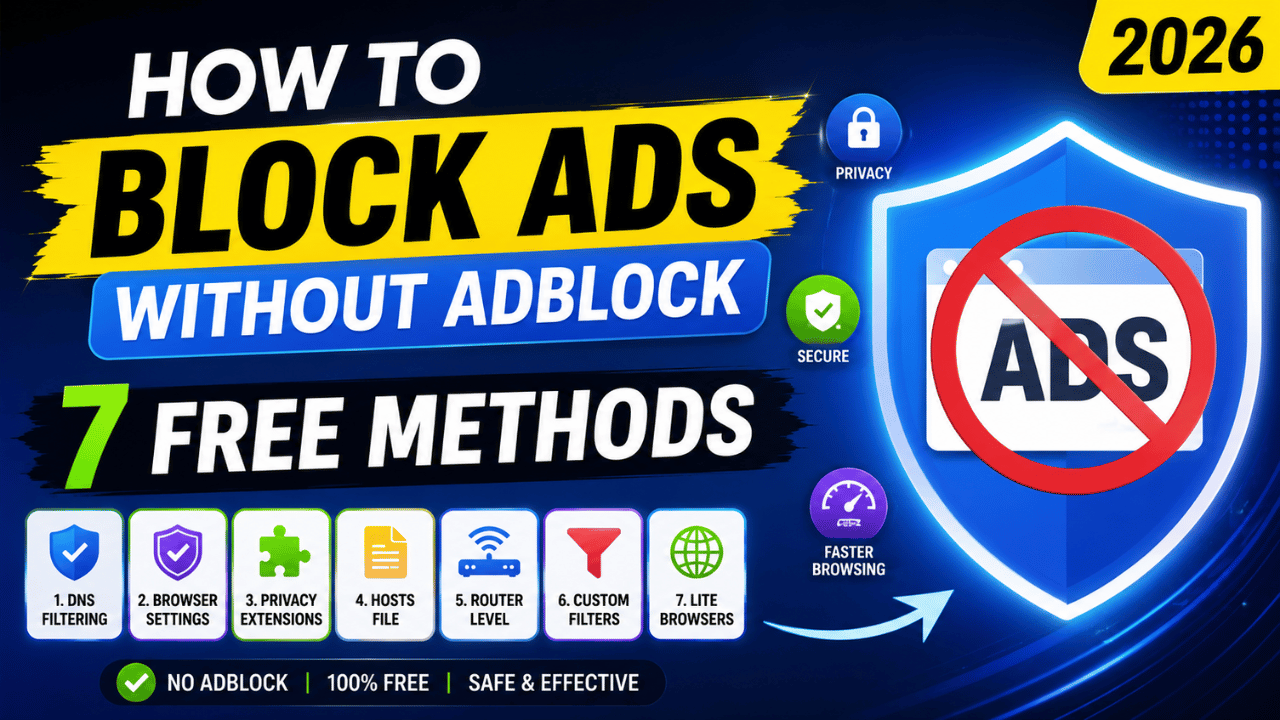
AdBlock extensions are the go-to solution for most people — but they are not always the best option. Google Chrome’s Manifest V3 update has significantly weakened traditional ad blockers. Many websites now detect and block AdBlock users entirely. And on mobile devices, browser extensions don’t work at all.
The good news: you don’t need AdBlock to browse the internet ad-free in 2026. There are seven methods — some requiring zero setup — that block ads more effectively than traditional extensions, work across all your devices, and can’t be detected by anti-adblock scripts.
Here’s exactly how each one works.
Why AdBlock Isn’t Always the Best Choice in 2026
Before diving into alternatives, it’s worth understanding why people are looking beyond AdBlock in the first place.
Extension-based blockers are caught more often, filter list updates are racing to keep up, and some publishers have moved to server-side ad insertion (SSAI) which is architecturally unblockable from the client side.
Three specific problems with traditional AdBlock extensions in 2026:
1. Chrome’s Manifest V3 Restrictions Google Chrome has introduced Manifest V3 — tightening extension permissions and limiting how deeply ad blockers can filter content. This means most AdBlock extensions on Chrome are now less effective than they were in 2024.
2. Anti-AdBlock Detection Scripts check for blocked ad containers or specific files. If they’re missing, the site assumes an ad blocker is running. Many news sites, streaming platforms, and content publishers now block access entirely if they detect your ad blocker.
3. Mobile Limitations Browser extensions don’t work on the official Chrome or Safari apps on iPhone and Android — meaning millions of mobile users have no extension-based option at all.
Method 1 — Switch to Brave Browser (Easiest — Zero Setup)
Best for: Desktop and mobile users who want instant ad blocking with no configuration
Brave has a built-in ad blocker that works right out of the box. It’s the simplest way to block ads without installing any extension or app.
Brave is a free browser available on Windows, Mac, Linux, Android, and iPhone. The moment you install it and open a website, ads are blocked — no setup, no extensions, no accounts required.
What Brave blocks:
- Banner and display ads
- Video pre-roll ads
- Tracking scripts
- Fingerprinting
- Social media trackers
How to install Brave:
- Go to brave.com
- Download for your device
- Install and open — ads are blocked immediately
Brave Shields (the built-in blocker) can be customized per site — click the lion icon in the address bar to adjust settings for individual websites.
Limitation: You need to switch browsers. If you’re committed to Chrome or Safari, this method requires a change of habit.
Method 2 — Firefox with uBlock Origin (Most Powerful Free Extension)
Best for: Users who want maximum ad blocking power on desktop
Firefox with uBlock Origin is one of the easiest free choices for ad blocking. Unlike Chrome, Firefox hasn’t implemented Manifest V3 restrictions — meaning uBlock Origin works at full power on Firefox in 2026.
Keeping your uBlock Origin filter lists up to date on Firefox remains the best free option for extension-based ad blocking.
How to set it up:
- Download Firefox from mozilla.org
- Open Firefox → go to addons.mozilla.org
- Search “uBlock Origin”
- Click Add to Firefox
- Done — ads are now blocked across all websites
Why uBlock Origin is better than AdBlock:
- Uses less RAM and CPU than AdBlock or Adblock Plus
- More aggressive filtering rules
- No “Acceptable Ads” program (AdBlock Plus allows some ads by default)
- Fully open source
Security note: uBlock Origin also blocks malvertising — malicious ads that distribute malware. Read our guide on Best Antivirus Software 2026 for additional protection.
Method 3 — DNS-Level Ad Blocking (Blocks Ads on Every Device)
Best for: Blocking ads on ALL devices — phones, smart TVs, tablets, gaming consoles — without any extensions
DNS-level blocking is one of the most powerful ad-blocking methods available in 2026. The most reliable approach in 2026 is a system-level blocker — one that operates below the browser layer where detection scripts can’t reach.
Instead of blocking ads in your browser, DNS blocking intercepts ad requests at the network level — before they even reach your device. Anti-adblock scripts can’t detect it because no extension is involved.
Option A — NextDNS (Free, Easy Setup)
NextDNS is a free DNS service that blocks ads, trackers, and malware across all your devices.
Setup on Windows:
- Go to nextdns.io → Create free account
- Go to Setup → copy your DNS addresses
- Windows: Settings → Network → DNS → enter NextDNS addresses
- Done — every device on your network blocks ads
Setup on iPhone:
- Go to nextdns.io/ios
- Download the NextDNS profile
- Install → ads blocked on all apps and browsers
Free plan: 300,000 DNS queries/month — enough for most users.
Option B — AdGuard DNS (Completely Free, No Account Needed)
AdGuard offers free DNS servers you can use without even creating an account:
AdGuard DNS addresses:
Primary:   94.140.14.14
Secondary: 94.140.15.15
Simply change your device’s DNS settings to these addresses — ads are blocked on every app and browser immediately.
Method 4 — Pi-hole (Network-Wide Ad Blocking at Home)
Best for: Tech-savvy users who want to block ads on every device in their home
Pi-hole is a free, open-source software that turns a Raspberry Pi (or any Linux computer) into a network-wide ad blocker. Every device connected to your home WiFi — phones, laptops, smart TVs, gaming consoles — gets ads blocked automatically.
How it works: Pi-hole acts as your home network’s DNS server, blocking requests to known ad-serving domains before they reach any device.
What you need:
- Raspberry Pi (about $35) or an old spare computer
- Basic Linux command line knowledge
Basic setup steps:
- Install Raspberry Pi OS on your device
- Run:
curl -sSL https://install.pi-hole.net | bash - Follow the installer
- Set your router’s DNS to your Pi-hole’s IP address
- Every device on your network now blocks ads
Why Pi-hole is powerful:
- Blocks ads in apps — not just browsers
- Blocks ads on smart TVs where no extension can reach
- Zero CPU impact on your devices
- Completely free
Pi-hole is also excellent for improving security on your home network — it blocks known malware and phishing domains too.
Method 5 — Edit Your Hosts File (No Extensions, No Apps)
Best for: Advanced users who want offline, extension-free ad blocking
The hosts file is a system file on your computer that maps domain names to IP addresses. By adding ad-serving domains to your hosts file and pointing them to 0.0.0.0 (nowhere), you block ads at the operating system level.
Where to find the hosts file:
- Windows:
C:\Windows\System32\drivers\etc\hosts - Mac/Linux:
/etc/hosts
How to add ad-blocking entries:
- Download a pre-made hosts file from github.com/StevenBlack/hosts
- Copy the ad-blocking entries
- Paste into your system hosts file (requires administrator/root access)
- Save and restart your browser
Example entries:
0.0.0.0 doubleclick.net
0.0.0.0 ads.google.com
0.0.0.0 pagead2.googlesyndication.com
Limitation: Requires manual updates and some technical comfort. DNS-level blocking (Method 3) does the same thing more easily.
Method 6 — Use a Browser with Built-In Ad Blocking
Best for: Users who want ad blocking without managing extensions
Besides Brave, several other browsers include built-in ad blocking:
| Browser | Built-in Ad Blocking | Platform | Free? |
|---|---|---|---|
| Brave | ✅ Excellent | Desktop + Mobile | ✅ |
| Vivaldi | ✅ Good | Desktop | ✅ |
| Opera | ✅ Good | Desktop + Mobile | ✅ |
| Samsung Internet | ✅ Good | Android | ✅ |
| Firefox Focus | ✅ Good | iOS + Android | ✅ |
Vivaldi browser has a built-in ad blocker that protects your data without requiring any external extensions.
Firefox Focus is particularly useful on iPhone — it’s a privacy browser with built-in content blocking that works on iOS where extensions aren’t available.
Method 7 — Block YouTube Ads Specifically
YouTube ads deserve their own method because they’re particularly aggressive in 2026 and require specific approaches.
On Desktop (Firefox + uBlock Origin): The most reliable free method. Firefox with uBlock Origin is one of the easiest free choices for blocking YouTube ads specifically.
On Android: Firefox with uBlock Origin is one of the easiest free choices on Android. Install Firefox for Android → add uBlock Origin → YouTube ads are blocked.
Alternatively, use YouTube Vanced‘s successor — ReVanced — which patches the YouTube app to remove ads. Note: The Vanced project shut down years ago. Sites claiming to offer it today distribute malicious software. Only download ReVanced from the official revanced.app source.
On iPhone: On iPhone, open YouTube in Safari and enable a content blocker such as 1Blocker or Magic Lasso. These reduce ads in Safari but don’t control the official YouTube app.
SponsorBlock: A free browser extension that automatically skips sponsored segments within YouTube videos — not traditional ads, but removes the creator-inserted promotional content that ad blockers can’t touch.
Comparison — Which Method is Right for You?
| Method | Difficulty | Covers Mobile? | Detected by Anti-Adblock? | Cost |
|---|---|---|---|---|
| Brave Browser | ⭐ Easy | ✅ Yes | ❌ No | Free |
| Firefox + uBlock Origin | ⭐ Easy | ✅ Android only | ⚠️ Sometimes | Free |
| NextDNS | ⭐⭐ Medium | ✅ All devices | ❌ No | Free |
| AdGuard DNS | ⭐ Easy | ✅ All devices | ❌ No | Free |
| Pi-hole | ⭐⭐⭐ Advanced | ✅ All devices | ❌ No | ~$35 hardware |
| Hosts File | ⭐⭐⭐ Advanced | ❌ Desktop only | ❌ No | Free |
| Built-in browsers | ⭐ Easy | ✅ Yes | ❌ No | Free |
For most people: Start with Brave Browser or NextDNS — both are free, easy, and effective across all devices.
For maximum protection: Combine Pi-hole (network-wide) + Brave Browser (browser-level) + uBlock Origin on Firefox for desktop work.
Do Ad Blockers Harm Websites?

This is worth addressing honestly. Websites rely on ad revenue — especially independent blogs, news sites, and content creators.
If you value a specific website’s content, consider:
- Whitelisting it in your ad blocker
- Subscribing to their premium plan
- Supporting them through Patreon or direct donations
System-level blockers like Pi-hole and DNS blocking are harder to whitelist per-site — keep this in mind if you want to support specific creators.
Frequently Asked Questions
Brave Browser is the easiest method — it blocks ads out of the box with zero setup on desktop and mobile. For network-wide blocking on all devices including smart TVs, NextDNS or AdGuard DNS are the best free options. For desktop power users, Firefox with uBlock Origin remains the most effective extension-based solution.
No. DNS-level blocking operates below the browser layer where anti-adblock detection scripts run. Websites cannot detect or block DNS-level ad blockers, making them more reliable than extension-based solutions on sites that enforce anti-adblock walls.
Partially. Chrome’s Manifest V3 update has reduced uBlock Origin’s effectiveness in Chrome. For full uBlock Origin functionality, use Firefox instead — Mozilla has not implemented the same restrictions.
Install Brave Browser or Firefox Focus on your iPhone — both have built-in content blocking. For Safari, install a content blocker like 1Blocker (free tier available). For network-wide blocking including the YouTube app, set up NextDNS using the iOS profile.
Pi-hole requires some basic Linux command line knowledge and a spare computer or Raspberry Pi. The installation is largely automated with a single command. If you’re comfortable following technical instructions, setup takes about 30-60 minutes and protects every device on your network permanently.
Yes — reputable services like NextDNS and AdGuard DNS are safe and privacy-respecting. They process DNS queries (website address lookups) but don’t see your actual browsing content. Both have clear privacy policies and don’t sell user data.
Conclusion
You don’t need AdBlock to browse the internet ad-free in 2026. Between Brave Browser, DNS-level blocking, uBlock Origin on Firefox, and Pi-hole, there are more powerful — and more detection-resistant — options available for free.
Start with one of these today:
- Easiest: Download Brave Browser at brave.com
- Best for all devices: Set up NextDNS at nextdns.io
- Best desktop extension: Install uBlock Origin on Firefox
All three are free, take under 10 minutes to set up, and are significantly more effective than traditional AdBlock extensions in 2026.