

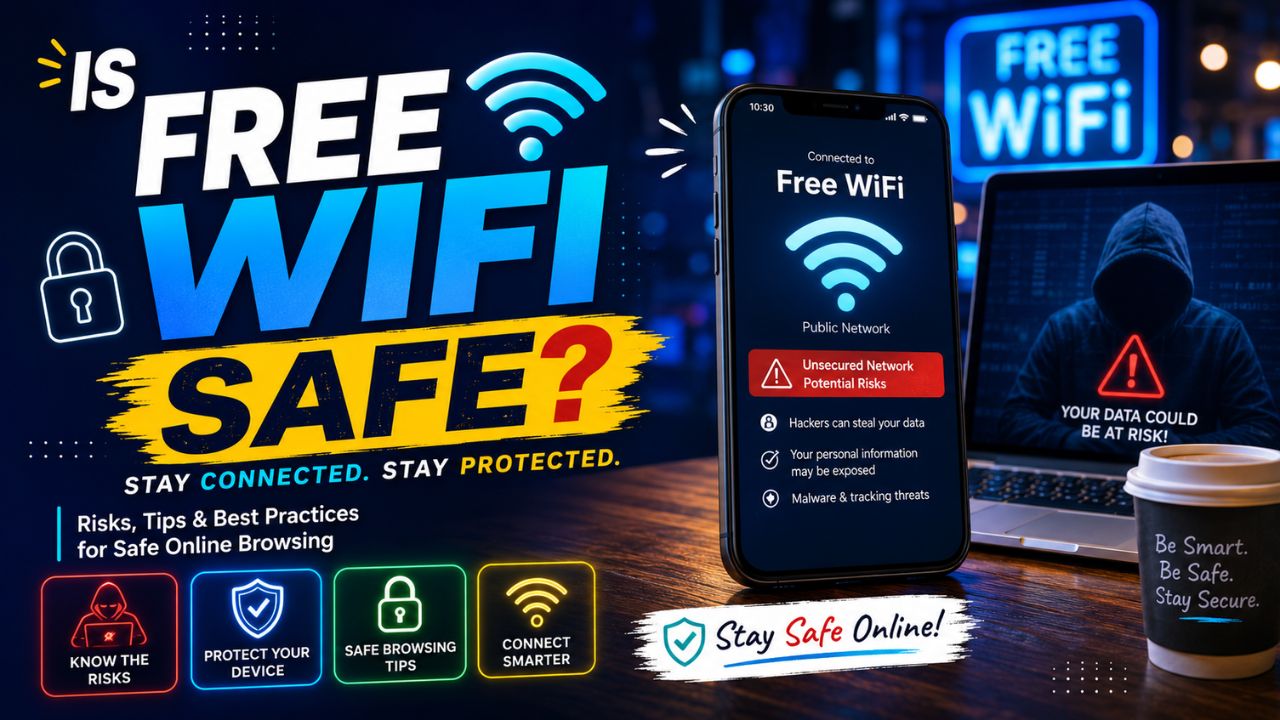
Free WiFi at coffee shops, airports, hotels, and malls is one of life’s conveniences. But every time you connect to a public network, you’re potentially sharing your data with every other person on that network — including hackers.
Free WiFi refers to publicly accessible wireless internet connections provided without charge. From cafés and shopping malls to schools, transport centers, and hotels, these networks are typically available in public places. Public WiFi typically lacks the strong encryption and authentication that secured private networks have.
So is free WiFi actually safe to use? The honest answer: it depends on what you do on it and how you protect yourself. This guide explains the real risks, how hackers exploit public networks, and the exact steps to protect yourself.
Why Free Public WiFi Is Risky
People often overlook the dangers of public WiFi despite the risks that unsecured networks pose, including data theft and malware deployment.
The core problem is simple: public Wi-Fi networks are not as safe as your home Wi-Fi. Bad actors often join such unsecured Wi-Fi networks with malicious intent, hackers included.
When you connect to your home WiFi, your router encrypts your traffic. Only devices on your network can see your data. On a public network, an unencrypted network does nothing to protect your connection. Hackers can access information on such networks effortlessly.
6 Real Risks of Using Free Public WiFi
1. Man-in-the-Middle (MITM) Attacks
This is the most common public WiFi attack. A hacker positions themselves between you and the router — intercepting all data flowing between your device and the internet.
The biggest security concern with free public Wi-Fi is data interception. On an unsecured network, attackers can monitor internet traffic and capture sensitive information such as usernames, passwords, emails, and credit card details.
You never know it’s happening. Everything looks normal on your screen — but every keystroke, every login, every message is being read.
2. Evil Twin / Fake Hotspot Attacks
This is one of the most dangerous and underappreciated threats. A hacker creates a WiFi network with a name almost identical to a legitimate one.
Imagine you’re at Starbucks. The real network is “Starbucks_WiFi” — the hacker’s fake network is “StarbucksWiFi” or “Starbucks_Free”. You connect to the fake one, thinking it’s real. Now all your traffic goes through the hacker’s device first.
Networks with vague names like “FREE_WIFI” or ones that imitate official networks may be designed to lure users. Two versions of the same Wi-Fi name could indicate a fake hotspot set up to intercept data.
3. Packet Sniffing
Hackers use software tools called “packet sniffers” to capture all data transmitted over a network. On an unencrypted public WiFi, this data is completely readable — including login credentials, cookies, and session tokens.
Even without your password, stealing your session cookie can let a hacker log into your accounts as if they were you — a technique called session hijacking.
4. Malware Distribution
Hackers can exploit unsecured networks for MITM attacks or to distribute malware.
On public networks, attackers can inject malicious code into unencrypted pages you visit, silently installing malware on your device. This can result in ransomware, spyware, or keyloggers — all without you clicking anything suspicious.
5. Unencrypted Network Vulnerabilities
An encrypted network turns your traffic into code. Cracking this code is still possible but requires much more effort than is practically possible. An unencrypted network does nothing to protect your connection.
Many public WiFi networks — especially in smaller cafes, restaurants, and older hotels — still use outdated WEP encryption or no encryption at all. This makes them trivially easy to compromise.
6. Auto-Connect Attacks
Your phone remembers every WiFi network you’ve ever connected to. When a hacker creates a network with the same name as one you’ve used before, your device may connect automatically — without any notification.
Forget the network after use, so your device doesn’t automatically reconnect to risky hotspots.
How to Tell If a Public WiFi Network Is Safe
Before connecting, look for these warning signs:
Generic or suspicious names — networks with vague names like “FREE_WIFI” or ones that imitate official networks may be designed to lure users. Unusual login pages — redirects requesting personal details, unnecessary permissions, or payment information are a strong warning. Security warnings — browser alerts about invalid or insecure certificates suggest the connection may have been tampered with. Unexpected pop-ups or ads — immediate prompts to install software or click on pop-ups can indicate a compromised network.
Safe signs:
- ✅ Password required to connect
- ✅ Staff confirmed the network name
- ✅ HTTPS on websites you visit (padlock icon)
- ✅ No unexpected pop-ups or redirects
Danger signs:
- ❌ No password required
- ❌ Generic name like “Free WiFi” or “Guest Network”
- ❌ Websites not loading over HTTPS
- ❌ Redirects asking for personal information
What You Should NEVER Do on Public WiFi
Even on a “safe” public network, avoid these activities:
| Activity | Risk Level | Why |
|---|---|---|
| Online banking | 🔴 Never | Login credentials and account data exposed |
| Credit card purchases | 🔴 Never | Payment details intercepted |
| Logging into work accounts | 🔴 Never | Corporate data at risk |
| Checking medical portals | 🔴 Never | Sensitive personal data |
| Sending sensitive emails | 🟡 Avoid | Content can be read in transit |
| Social media login | 🟡 Caution | Credentials can be stolen |
| General browsing (HTTPS) | 🟢 OK with VPN | Lower risk if VPN is active |
| Streaming video | 🟢 OK | Low sensitivity data |
You shouldn’t do banking on public Wi-Fi, but that’s not the only way you can potentially expose your sensitive data. Don’t log into any of your government service-related profiles, health service portals, and so on.
8 Ways to Protect Yourself on Public WiFi
1. Use a VPN — Most Important Step
The most secure way to use public or free WiFi is by using a VPN to secure your connection. This protects your communications from being read by others on the same public WiFi.
A VPN (Virtual Private Network) encrypts all your internet traffic before it leaves your device — creating a secure tunnel that hackers on the same network can’t penetrate.
Not sure what a VPN is? Read our guide: <a href=”https://techsolution.blog/security/what-is-vpn-do-you-really-need-one-in-2026/”>What is VPN? Do You Really Need One in 2026?</a>
Best VPNs for public WiFi in 2026:
- NordVPN — Fastest speeds, excellent security
- ExpressVPN — Best for travel, easy to use
- Proton VPN — Best free option, Swiss privacy laws
- Surfshark — Best value, unlimited devices
Be wary of free VPN services, especially if the service provider is unknown. Free VPNs often sell your browsing data — defeating the purpose entirely.
2. Only Use HTTPS Websites
Use HTTPS websites — always check that websites use HTTPS encryption before entering login credentials or personal information.
Look for the padlock icon in your browser’s address bar. HTTPS encrypts the data between your browser and the website — even if someone intercepts your traffic, they can’t read it.
Most major websites use HTTPS automatically in 2026. If a site is still HTTP — especially one asking for login details — leave immediately.
3. Turn Off Auto-Connect
Disable auto-connect — many devices automatically connect to previously used networks. Disabling this feature can prevent accidental connections to malicious hotspots.
iPhone: Settings → WiFi → tap the (i) next to a network → turn off “Auto-Join”
Android: Settings → WiFi → Long press a saved network → tap “Forget” or disable Auto-connect
OWindows: Settings → Network & Internet → WiFi → Manage known networks → select network → uncheck “Connect automatically”
4. Verify the Network Name With Staff
Before connecting in a café, hotel, or airport — ask a staff member for the exact WiFi network name and password. This eliminates the risk of connecting to an evil twin network that looks identical to the real one.
5. Use Mobile Data for Sensitive Tasks
When accessing sensitive information, using your mobile data connection or personal hotspot is often safer than public Wi-Fi.
For banking, work logins, or any sensitive activity — switch to mobile data. Your cellular connection is encrypted end-to-end and far harder to intercept than public WiFi.
6. Enable Two-Factor Authentication
Even if a hacker steals your password on public WiFi, 2FA stops them from logging into your accounts without your phone.
Learn how to set it up: What Is Two-Factor Authentication? Complete Setup Guide 2026
7. Keep Your Device Updated and Protected
Malware distributed via public WiFi exploits known security vulnerabilities. Keeping your operating system and apps updated closes these vulnerabilities.
Using a reliable antivirus adds another layer — detecting and blocking any malware that tries to install through network attacks.
8. Forget the Network After Use
To stay safe on a public network, forget the network after use, so your device doesn’t automatically reconnect to risky hotspots.
After leaving a public location, go to your WiFi settings and “Forget” the network. This prevents your device from automatically reconnecting next time you’re nearby.
Is Hotel WiFi Safe?
Hotel WiFi deserves special mention — it’s one of the most widely used and least secure public networks.
Generally, unsecured hotel WiFi isn’t safe to use unless you have proper protection in place. While the hotel network may be legitimate, any other guest who has access to the network can also potentially access the data you send and receive. Hackers can also exploit unsecured networks for MITM attacks or to distribute malware.
Hotels often have hundreds of guests sharing the same network. Business travelers are specifically targeted on hotel WiFi — their work logins, VPN credentials, and corporate data are high-value targets.
Rule for hotel WiFi: Always use a VPN. No exceptions.
Is Airport WiFi Safe?
Airport WiFi is among the most dangerous public networks available — for two reasons:
- High value targets — airports attract business travelers and tourists with valuable data
- Easy to fake — airports have dozens of terminals, making it easy to create convincing fake network names
The FBI and CISA have both issued warnings about airport WiFi security. If you must use airport WiFi, use a VPN and avoid sensitive activities entirely.
Public WiFi Safety — Quick Reference Card
| Situation | Safe to Do? | With VPN? |
|---|---|---|
| General browsing | ⚠️ Caution | ✅ Yes |
| Checking email | ⚠️ Caution | ✅ Yes |
| Social media | ⚠️ Caution | ✅ Yes |
| Online banking | ❌ No | ⚠️ Only if necessary |
| Online shopping | ❌ No | ⚠️ Only if necessary |
| Work login/VPN | ❌ No | ✅ Use corporate VPN |
| Streaming video | ✅ Yes | ✅ Yes |
| Maps/navigation | ✅ Yes | ✅ Yes |
Frequently Asked Questions
Q1: Is free public WiFi safe to use in 2026?
Public WiFi networks are everywhere and they’re a convenient way to access the internet when you’re on the go. However, they pose real risks including data theft and malware deployment. With a VPN and proper precautions, risks are significantly reduced — but sensitive activities like banking should always use mobile data instead.
Q2: Can someone see what I’m doing on public WiFi?
Yes — without a VPN. On an unencrypted network, anyone with basic tools can see your internet traffic, including websites you visit and data you transmit. HTTPS encrypts individual site connections, but a VPN protects everything.
Q3: What is the safest way to use public WiFi?
Use a VPN to encrypt your internet traffic, avoid banking or sensitive transactions, use HTTPS websites, and disable auto-connect. These four steps dramatically reduce your risk.
Q4: Is it safe to check my bank account on public WiFi?
No — avoid banking on public WiFi even with a VPN. Use your mobile data connection for any financial activities. The risk is simply not worth the convenience.
Q5: What is an evil twin attack?
An evil twin is a fake WiFi hotspot designed to look like a legitimate network. When you connect, the attacker sees all your traffic. Always verify network names with staff before connecting, and use a VPN.
Q6: Does using HTTPS protect me on public WiFi?
HTTPS encrypts the data between your browser and the specific website — but it doesn’t hide which sites you’re visiting or protect all your device’s traffic. A VPN provides more complete protection.
Conclusion
Public WiFi is risky, but avoiding it entirely isn’t practical. The key is knowing the risks and taking the right precautions.
The three rules that cover 90% of your protection:
- Use a VPN — always, every time on public WiFi
- Never do banking or sensitive logins on public networks
- Verify the network name with staff before connecting
Follow these three rules and you dramatically reduce your exposure — without giving up the convenience of free WiFi entirely.
Also read:
What is VPN? Do You Really Need One in 2026?
What Is Two-Factor Authentication? Complete Setup Guide 2026
How to Protect Your WiFi From Hackers at Home
Top 10 Cybersecurity Threats in 2026
Best Antivirus Software 2026 – Which One Actually Works?