
Most people use Google Drive the same way they’ve used it for a decade — upload a file, open it, maybe share it once. But its true power lies in its integration with Google Workspace and its flexibility for collaboration, organization, and automation.
If you’re still digging through endless folders to find a file from three months ago, you’re not using Google Drive — you’re just storing things in it. Here are 15 tips that actually change how you work.
1. Master the Keyboard Shortcuts
If you really want to use Google Drive like a pro, you need to learn the keyboard shortcuts.
The shortcuts that save the most time:
| Shortcut | Action |
|---|---|
| Shift + T | Create a new Google Doc |
| Shift + S | Create a new Google Sheet |
| Shift + P | Create a new Google Slide |
| / | Jump cursor to the search bar |
| G then I | Go to Google Drive from anywhere in Workspace |
| Ctrl + / (Cmd + / on Mac) | View the full shortcut list |
These shortcuts eliminate the need to click through menus every time you want to create a new file — a small change that compounds over hundreds of uses.
2. Use Shortcuts Instead of Duplicating Files
This is one of the most underrated tricks in how to use Google Drive like a pro. Ever copied the same file into multiple folders? That creates confusion — which one is the actual updated version?
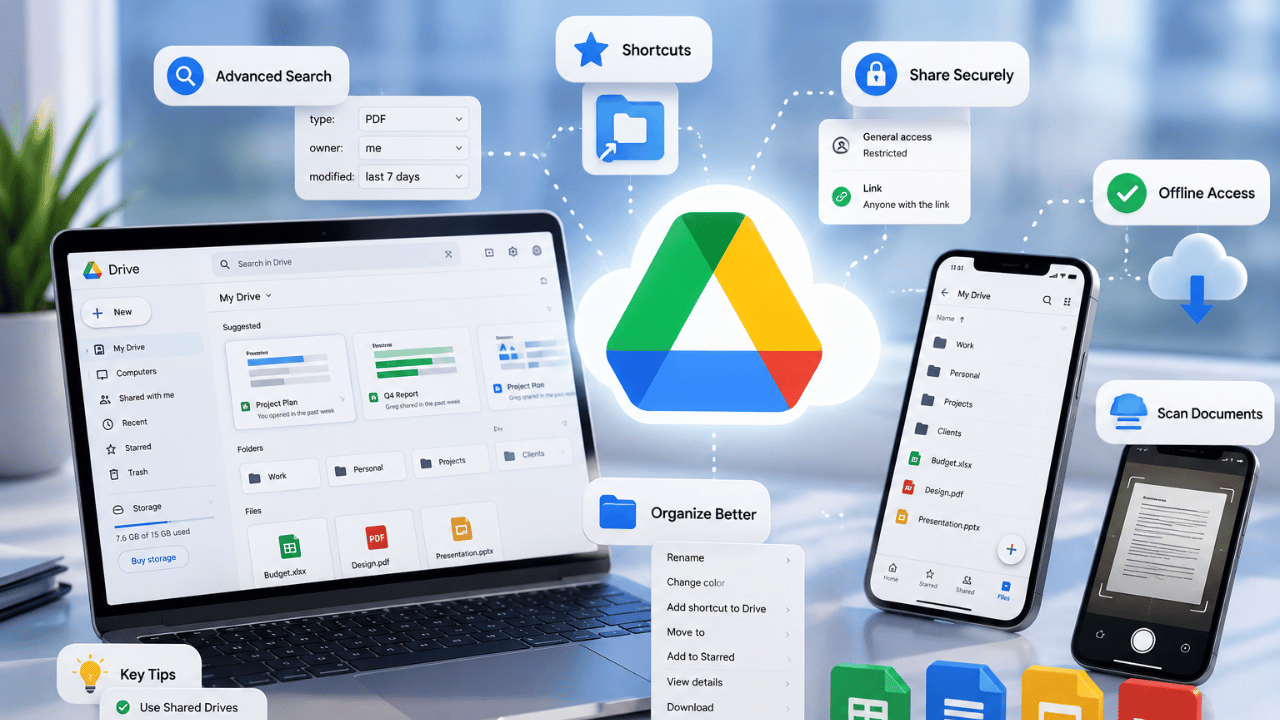
Instead of duplicating files into multiple folders, use shortcuts. Right-click a file and choose “Add shortcut to Drive.” This lets one file appear in multiple folders without duplicates.
Why this matters: Edit the file once, and the change reflects everywhere it’s linked — no more hunting for which copy is current.
3. Use Advanced Search Operators
Google Drive supports search operators that filter results instantly, without scrolling through folders.
Examples worth memorizing:
type:pdf          → Shows only PDF files
owner:me          → Shows files you created
before:2026-01-01 → Shows files modified before a specific date
Click on the downward arrow inside the search box at the top of the screen to filter files based on format, ownership permissions, or web visibility — without typing the operators manually.
For broader digital organization habits: Best Productivity Apps 2026 – Top Tools to Get More Done
4. Enable Offline Access
Imagine needing to finish a document in the next hour, but you’re about to run for a train where you’ll have no cellular coverage. Not a disaster — if you have Offline mode enabled.
How to enable it:
- Go to Settings (gear icon) → Offline
- Toggle “Create, open and edit your recent Google Docs, Sheets, and Slides files on this device while offline”
Once enabled, you can edit Docs, Sheets, and Slides without an internet connection — changes sync automatically the next time you’re online.
5. Color-Code and Star Important Folders
Right-click on a folder and choose a color — a simple trick to visually prioritize folders and find them faster.
Combine this with starring: right-click any file → “Add to Starred” for one-click access from the Starred section in the left sidebar. Together, these two features turn a flat file list into a visually organized system you can scan in seconds.
6. Use Consistent File Naming
Use consistent naming for files and folders, like “YYYY-MM-DD_ProjectName_Version.” This makes files more searchable and easier to sort chronologically.
Example naming convention:
2026-06-15_ClientProposal_v2.docx
2026-06-20_BudgetReport_Final.xlsx
This single habit makes Drive’s search function dramatically more effective — you can find any file by typing a date, project name, or version number.
7. Use Google Drive Priority
Google Drive Priority is a feature that uses machine learning to surface your most important and relevant files. To access it, click Priority in the left-hand menu.
This is genuinely useful for people juggling multiple active projects — Drive learns which files you interact with most and surfaces them automatically, reducing the time spent searching.
8. Install Google Drive for Desktop
Google has combined the functionality of Backup and Sync and Drive File Stream into a single app called Google Drive for Desktop. Sync Drive to your desktop to open files using applications on your computer without manually downloading and re-uploading.
Benefits:
- Files open directly in desktop apps (Word, Excel, Photoshop)
- Specific folders can sync locally for offline access
- Acts as an automatic backup for your local files
9. Use Multiple File Preview
Want to preview multiple files at once without opening them up? Place ticks next to all the files you want to see, then press the preview button (eye symbol). Use the cursor keys or side arrows to navigate through your files.
This saves significant time when reviewing a batch of images, PDFs, or documents — no need to open and close each one individually.
10. Use Built-In OCR (Optical Character Recognition)
Google Drive can use OCR to parse text in PDF files and images and convert it into a standard Google Docs document. Choose this option from the upload settings — the original image or PDF is embedded at the top of the resulting document.
Practical use case: Photograph a printed document or scan an old contract, upload it to Drive, right-click → Open with Google Docs — Drive extracts the text automatically, making it searchable and editable.
11. Set Expiring Access Links
When sharing sensitive files, you don’t always want permanent access. Drive lets you set expiring access links — share a file for a limited time window, after which access automatically revokes.
How to set it up:
- Click Share on any file
- Click the gear/settings icon
- Set an expiration date for the specific collaborator
This is particularly useful for sharing financial documents, contracts, or time-sensitive project files with external collaborators.
12. Use Templates to Work Faster
Want to work faster every week? Templates are your answer. Instead of building the same report, invoice, or proposal structure from scratch each time, save it as a template.
Where to find templates: Google Docs/Sheets/Slides → File → New → From template gallery
Browse Google’s built-in templates or save your own frequently-used document structures for instant reuse.
13. Connect Drive With Tools You Already Use
Google Drive becomes more powerful when connected with tools you already use:
- Gmail: Attach Drive files without sending large attachments
- Calendar: Attach relevant Drive documents directly to meeting invites
- Slack/Teams: Share and preview Drive links without leaving the chat app
These integrations reduce the constant copy-paste-attach cycle that wastes time across separate apps.
14. Use “Recent” and “Shared with Me” Views
Use the Recent and Shared with me sections to quickly find files you’ve interacted with or that others have shared — without remembering exact folder locations.
This is faster than searching by name, especially for files you opened earlier today or yesterday but can’t quite remember where you saved them.
15. Secure Your Drive Properly
Keep your files safe and secure by using two-step verification and adjusting your sharing settings as needed.
Essential security checklist:
- ✅ Use a strong, unique password for your Google account
- ✅ Enable 2-Step Verification
- ✅ Review sharing permissions regularly — avoid “Anyone with the link can edit” unless truly necessary
- ✅ Remove access for collaborators who no longer need it
- ✅ Check the Activity panel periodically to see who has accessed shared files
Google Drive Storage — What You Get for Free
Google Drive offers 15GB of free storage, shared across Drive, Gmail, and Google Photos. You can upgrade via Google One if you need more space.
| Plan | Storage | Approx. Price |
|---|---|---|
| Free | 15GB | $0 |
| Google One Basic | 100GB | ~$1.99/month |
| Google One Standard | 200GB | ~$2.99/month |
| Google One Premium | 2TB | ~$9.99/month |
If you regularly hit storage limits, check what’s eating space first — large video files and duplicate uploads are usually the culprit before you need to pay for an upgrade.
Quick Reference — All 15 Tips at a Glance
| # | Tip | Time Saved |
|---|---|---|
| 1 | Keyboard shortcuts | High |
| 2 | Use shortcuts not duplicates | High |
| 3 | Advanced search operators | High |
| 4 | Offline access | Medium |
| 5 | Color-code + star folders | Medium |
| 6 | Consistent file naming | High |
| 7 | Priority feature | Medium |
| 8 | Drive for Desktop | High |
| 9 | Multiple file preview | Medium |
| 10 | Built-in OCR | High (specific use) |
| 11 | Expiring access links | Security |
| 12 | Templates | High |
| 13 | App integrations | Medium |
| 14 | Recent/Shared with me | Medium |
| 15 | Security settings | Critical |
Frequently Asked Questions
Google Drive offers 15GB of free storage, shared across Drive, Gmail, and Google Photos. You can upgrade via Google One plans starting around $1.99/month for 100GB if you need more space.
Right-click any file and select “Add shortcut to Drive” instead of copying it. This lets one file appear in multiple folder locations without creating actual duplicates — edits made anywhere reflect everywhere the shortcut exists.
Yes. Go to Settings → Offline, and enable offline access. Once turned on, you can create, open, and edit recent Google Docs, Sheets, and Slides files without an internet connection — changes sync automatically once you’re back online.
Use a strong unique password, enable 2-Step Verification, regularly review sharing permissions, and avoid setting links to “Anyone with the link can edit” unless absolutely necessary. Periodically remove access for collaborators who no longer need it.
Search operators let you filter results with specific commands, such as type:pdf to show only PDFs, owner:me to show files you created, or before:2026-01-01 to show files modified before a certain date. These dramatically speed up finding specific files.
Yes — Google Drive includes built-in OCR (Optical Character Recognition). Upload a scanned PDF or image, then open it with Google Docs. Drive automatically extracts the text into an editable, searchable document.
Conclusion
Google Drive is an incredibly powerful tool, and most people only use a fraction of what it offers. The difference between casual use and using it like a pro comes down to a few specific habits: organize with shortcuts instead of duplicates, master the search operators, enable offline access, and tighten your security settings.
Start with three changes today: enable 2-Step Verification, set up offline access, and learn the keyboard shortcuts. These alone will noticeably speed up your daily workflow.