

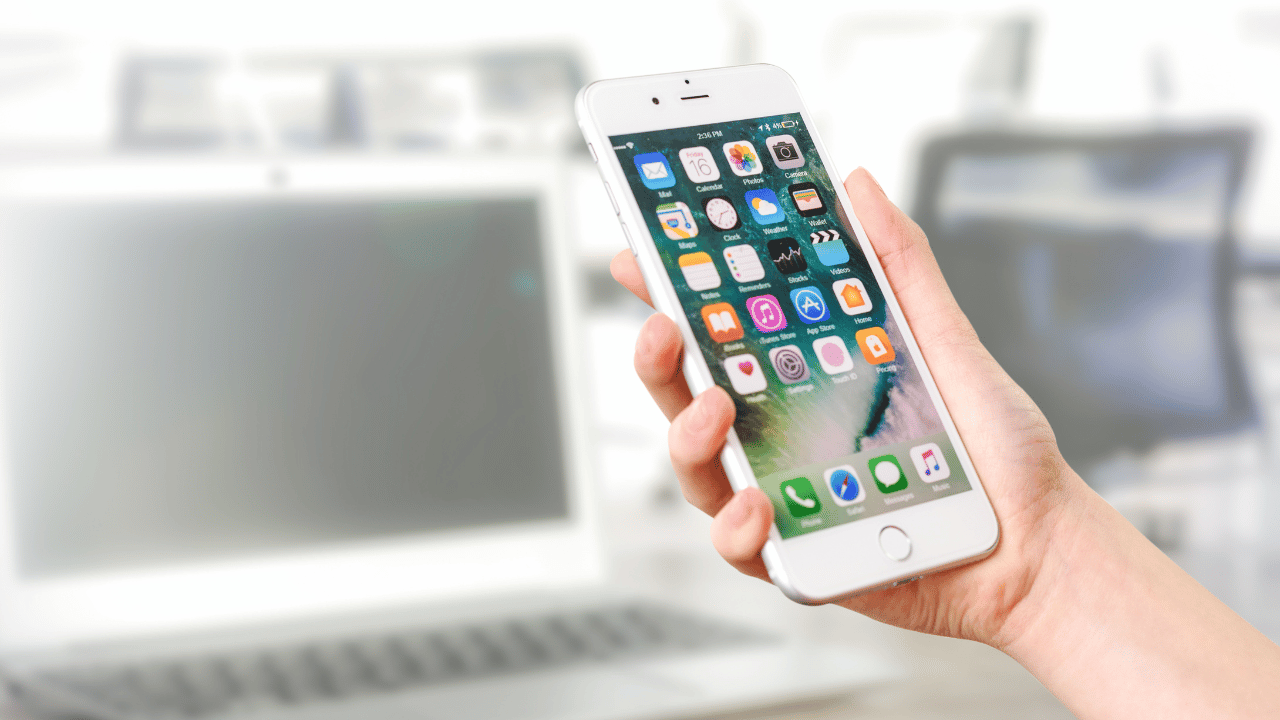
Imagine waking up one day and your phone is gone — stolen, broken, or lost. All your photos, contacts, messages, and apps — vanished in seconds.
It happens more than you think. And the worst part? Most people only realize they needed a backup after it’s too late.
Backing up your phone takes less than 5 minutes to set up. Once it’s done, it runs automatically — and you never have to worry again. In this guide, I’ll walk you through exactly how to backup your phone data on both Android and iPhone, step by step.
Why You Should Backup Your Phone Right Now
Your phone holds everything:
- Precious photos and videos
- Important contacts and messages
- Work emails and documents
- App data and settings
- Banking and password information
Any of these can disappear in an instant due to:
- Phone theft or loss
- Accidental damage (water, drops)
- Factory reset gone wrong
- Software update failure
- Ransomware or malware attack
A backup takes 5 minutes to set up. Recovering from data loss can take weeks — or be impossible. The choice is obvious.
How to Backup Android Phone Data
Android gives you multiple ways to backup your data. Here are the best methods:
Method 1: Google Backup (Recommended)
Google’s built-in backup is the easiest and most reliable option for Android users. It automatically saves your contacts, app data, call history, SMS messages, device settings, and photos to your Google account.
Steps:
- Open Settings on your Android phone
- Tap Google → Backup
- Turn on Back up to Google Drive
- Tap Back Up Now to start an immediate backup
- Make sure your Google account is selected
That’s it. From now on, your phone will automatically backup whenever it’s:
- Connected to WiFi
- Charging
- Screen is off
What gets backed up:
- App data and settings
- Call history
- Contacts
- Device settings
- SMS and MMS messages
Note: Google gives you 15GB of free storage. If you need more, upgrade to Google One.
Method 2: Google Photos (For Photos & Videos)
Google Photos is the best way to backup your photos and videos separately.
Steps:
- Download Google Photos from Play Store (if not already installed)
- Open the app and sign in with your Google account
- Tap your Profile Picture → Photos Settings
- Tap Backup → Turn it On
- Choose backup quality:
- Storage Saver — Compressed quality (recommended for most users)
- Original Quality — Full resolution (uses more storage)
Your photos and videos will now automatically backup to Google Photos whenever you’re on WiFi.
Method 3: Backup to PC (Offline Backup)
For a complete offline backup of everything on your phone:
Steps:
- Connect your Android phone to your PC using a USB cable
- On your phone, swipe down the notification bar → tap USB charging this device
- Select File Transfer (MTP)
- Open File Explorer on your PC
- Navigate to your phone → copy the entire DCIM, Downloads, and Documents folders to your PC
This saves all your files locally — no internet required.
How to Backup iPhone Data
Apple makes it easy to backup your iPhone with two options: iCloud (wireless) and iTunes/Finder (computer).
Method 1: iCloud Backup (Recommended)
iCloud backup is the easiest way to backup your iPhone automatically.
Steps:
- Open Settings on your iPhone
- Tap your name at the top (Apple ID)
- Tap iCloud → iCloud Backup
- Turn on Back Up This iPhone
- Tap Back Up Now to start immediately
Your iPhone will now automatically backup to iCloud when it’s:
- Connected to WiFi
- Plugged in and charging
- Screen is locked
What gets backed up:
- App data
- Apple Watch backups
- Device settings
- Home screen layout
- iMessage, SMS, MMS
- Photos and videos
- Purchase history
- Ringtones
- Visual Voicemail
Note: Apple gives you only 5GB of free iCloud storage. If your phone has lots of data, you may need to upgrade to iCloud+ (starting from $0.99/month).
Method 2: Backup iPhone to Mac or PC
If you don’t want to use iCloud or need more storage, backup directly to your computer.
On Mac (macOS Catalina or later):
- Connect your iPhone to your Mac with a USB cable
- Open Finder
- Click your iPhone in the left sidebar
- Click General tab → Back up all of the data on your iPhone to this Mac
- Click Back Up Now
On Windows PC:
- Download and install iTunes from Apple’s website
- Connect your iPhone with a USB cable
- Open iTunes → click the iPhone icon
- Under Backups → select This Computer
- Click Back Up Now
This creates a complete backup of your entire iPhone on your computer — no storage limits.
Method 3: Backup iPhone Photos with Google Photos
If you’re running out of iCloud storage, Google Photos is a great free alternative for photos and videos.
Steps:
- Download Google Photos from the App Store
- Sign in with your Google account
- Tap your Profile Picture → Photos Settings → Backup
- Turn backup On
Now your iPhone photos will also be saved to Google Photos — completely separate from iCloud.
Android vs iPhone Backup: Quick Comparison
| Feature | Android (Google) | iPhone (iCloud) |
|---|---|---|
| Free Storage | 15GB | 5GB |
| Auto Backup | ✅ Yes | ✅ Yes |
| Photos Backup | Google Photos | iCloud Photos |
| PC Backup | File Transfer | iTunes/Finder |
| Ease of Use | Easy | Easy |
| Best For | Google ecosystem | Apple ecosystem |
How to Check If Your Backup is Working
Android:
- Go to Settings → Google → Backup
- You’ll see “Last backup: X hours/days ago”
- If it says “Waiting for WiFi” — connect to WiFi and it will backup
iPhone:
- Go to Settings → [Your Name] → iCloud → iCloud Backup
- You’ll see “Last Successful Backup: [date and time]”
- If no recent backup — tap Back Up Now
Common Backup Mistakes to Avoid
1. Only backing up once Set up automatic backup so it happens every day without you thinking about it.
2. Not checking if backup actually worked Always verify your last backup date. A backup that never ran is useless.
3. Relying on only one backup Follow the 3-2-1 rule: 3 copies of data, 2 different storage types, 1 offsite (cloud). For most people: phone + cloud + PC is enough.
4. Forgetting about WhatsApp and other apps WhatsApp has its own separate backup. Go to WhatsApp → Settings → Chats → Chat Backup → Back Up Now.
5. Running out of cloud storage Check your storage regularly. A backup that fails due to full storage is the same as no backup.
Frequently Asked Questions
Q1: How often should I backup my phone?
At minimum, once a week. If you take a lot of photos or have important work files, set it to daily automatic backup.
Q2: Does backing up my phone save everything?
Almost everything. Google and iCloud backup most app data, settings, contacts, and media. Some apps (like banking apps) don’t allow backup for security reasons.
Q3: Can I backup my phone without WiFi?
Yes — connect your phone to a PC and use file transfer (Android) or iTunes/Finder (iPhone) for a complete offline backup.
Q4: How much storage do I need for a backup?
It depends on your phone’s data. The average person needs 5-15GB for a complete backup. Check your current usage in Settings → Storage.
Q5: Is Google Backup safe?
Yes. Google encrypts your backup data. Only you can access it with your Google account credentials.
Q6: What happens to my backup if I change phones?
Your backup stays in the cloud. When you set up your new phone, simply sign in to your Google or Apple account and restore from backup. Everything transfers automatically.
Conclusion
Backing up your phone is one of the simplest things you can do to protect years of memories, important contacts, and critical data. Whether you’re on Android or iPhone, the process takes less than 5 minutes to set up — and then it runs automatically in the background.
Don’t wait for disaster to strike. Set up your backup today, verify it’s working, and rest easy knowing your data is safe.
→ Share this guide with someone who hasn’t backed up their phone yet. You might save them from a major headache.