

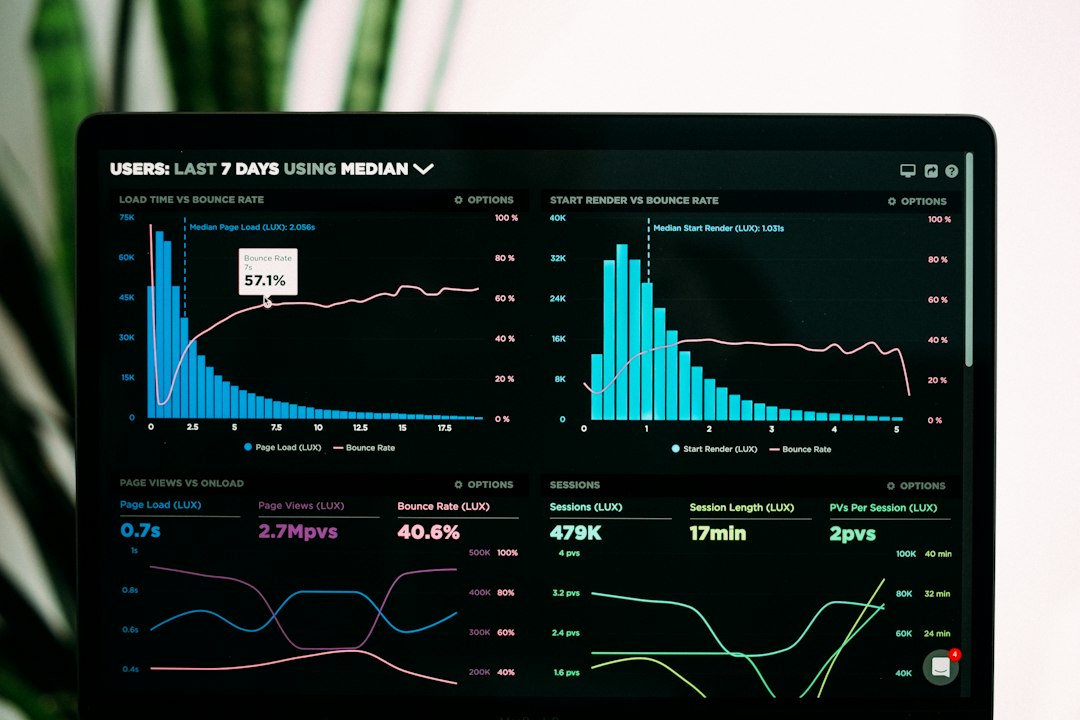
To run a WordPress speed test, open your page in a private window while logged out, enter the URL into a speed test such as our free website speed test or Google PageSpeed Insights, and read the mobile results first. Then fix the biggest issue and test again. Testing logged out matters because the admin bar and logged-in views are usually not cached.
Key takeaways
- Test while logged out and on mobile first, using several key pages and not only the homepage.
- Most WordPress slowdowns come from hosting, the theme or page builder, plugins and images.
- A score of 90 or above is good, and Core Web Vitals from real visitors matter more than the lab score (Google).
- Change one thing at a time so you can see what helped.
How do you run a WordPress speed test?
- Open a private or incognito window so you are logged out and extensions do not interfere.
- Copy the full URL of the page you want to test.
- Enter it into our free page speed checker or Google PageSpeed Insights.
- Select the mobile test first, then desktop.
- Note the score, the Core Web Vitals and the largest issues in the report.
- Run the test two or three times, because results vary slightly.
Which WordPress pages should you test?
Test one page for each template, because pages built from the same template usually share the same problems.
- Your homepage
- A blog post
- A category or archive page
- A key landing, service or product page
- Your highest-traffic pages
For testing many URLs, see our guide on bulk PageSpeed Insights testing.
Why is my WordPress site slow?
Most slow WordPress sites share the same four sources of delay.
- Hosting and server: slow server response and no caching.
- Theme and page builder: heavy themes and builders load a lot of CSS and JavaScript.
- Plugins and scripts: every plugin can add files and database queries, and third-party scripts add more.
- Images and media: oversized images are the most common single cause of a slow page.
How do you improve WordPress speed?
To improve WordPress speed, fix the issues your speed test reports in order of size. These changes help most sites.
- Enable page caching so WordPress does not rebuild every page for every visit.
- Optimize images: resize, compress and use WebP. See our guide on how to optimize images for page speed.
- Remove unused plugins and replace heavy ones with lighter options.
- Use a lightweight theme and avoid stacking several page builders.
- Use a current PHP version supported by your host and plugins.
- Use a CDN to serve files closer to visitors.
- Defer unneeded JavaScript. See how to eliminate render-blocking resources in WordPress.
- Upgrade hosting if the server is still slow after the steps above. See what a good TTFB is.
How do you find which plugin is slowing WordPress down?
The free Query Monitor plugin shows database queries, scripts and hooks by plugin on each page, which helps you spot heavy plugins. A simpler method is to deactivate one plugin at a time on a staging copy of your site and re-test. Never test this on a live site you cannot afford to break.
Should you test with caching on or off?
Test with caching on, because that is what visitors see. If your first test is slow and the second is fast, your cache is working but the first uncached visit is slow, so check server response time too.
Frequently asked questions
What is a good WordPress speed test score?
90 or above is good, 50 to 89 needs improvement and below 50 is poor, according to Google. Passing Core Web Vitals matters more than the exact number.
Why is my WordPress site slow only on mobile?
The mobile test simulates a slower phone and network, so heavy images and scripts stand out. See why mobile scores are lower than desktop.
Do caching plugins really work?
Yes, for most sites. They serve ready-made pages instead of rebuilding them, which cuts server response time. They cannot fix oversized images or slow hosting.
How many plugins is too many?
There is no magic number. What matters is how much each plugin adds, so measure with a speed test or Query Monitor rather than counting.
How often should I test my WordPress site?
Test after every theme, plugin or design change, and at least once a month.
Conclusion
A good WordPress speed test starts logged out, on mobile, on several key pages. Fix hosting, theme, plugin and image problems in order of size and re-test after each change. Start now with our free website speed test, then follow our guide on how to improve website speed.