
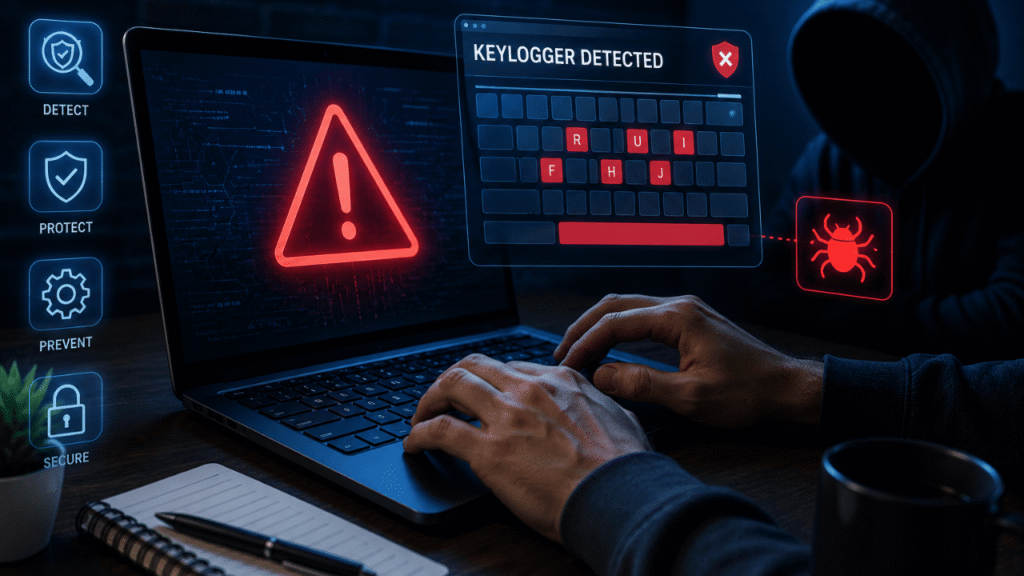

Imagine if someone had access to everything you type. Every password, every private message, every search query, every credit card number entered into a checkout form — recorded in real time and sent straight to a stranger.
That’s exactly what a keylogger does, and it’s one of the most common forms of malware in circulation. The unsettling part: keyloggers are designed specifically to work invisibly. Your computer keeps running normally while everything you type quietly leaves your device.
Here’s exactly what a keylogger is, how it gets onto your PC, and the specific steps to detect and remove one.
What Is a Keylogger?
A keylogger, or keystroke logger, is a type of surveillance software or hardware designed to record every keystroke made on a computer or mobile device. This activity occurs covertly — capturing everything from personal messages and search queries to sensitive login credentials and financial details, then sending that data back to an unauthorized third party without the user’s knowledge.
Cybercriminals deploy keyloggers to harvest high-value credentials, gain access to corporate systems, and steal sensitive intellectual property. A successful attack can lead to full account takeover, identity theft, and severe data breaches that ripple across an entire network.
If you’re worried your credentials may already be compromised: What Is Identity Theft? How to Prevent It in 2026
Are Keyloggers Always Illegal?
Not necessarily — and this surprises most people. Keylogging technology itself is a tool. It’s used legitimately by IT departments for system troubleshooting, by parents for monitoring children’s screen time, and by companies for authorized employee productivity audits, as long as it’s disclosed and consented to.
The key distinction lies in consent and intent. Malicious keyloggers are installed without the user’s knowledge or permission, with the explicit purpose of committing fraud or theft.
Legal uses:
- Parents monitoring a child’s device
- Companies tracking employee productivity on company-owned equipment (with disclosure)
- IT departments troubleshooting technical issues
Illegal uses:
- Installing a keylogger on someone’s personal device without their knowledge
- Capturing credentials, financial information, or private communications for fraud or theft
Software Keyloggers vs. Hardware Keyloggers
Software Keyloggers (Most Common)
A software keylogger is a form of malware that infects your device and, if programmed to do so, can spread to other devices the computer comes in contact with. Software keyloggers are much easier to introduce to victims’ devices, which is exactly why this variety is far more common than hardware keyloggers.
How they’re installed: Keyloggers invade PCs the same way most malware does — installed when you click on a file attachment you’ve been duped into opening, most commonly through a social engineering scheme or a cleverly designed phishing email. They can also arrive through text messages, instant messages, social networks, or by visiting an otherwise legitimate but infected website that drops a drive-by malware download.
What makes software keyloggers dangerous: The most sophisticated versions embed themselves deep within the operating system’s kernel, allowing them to intercept every keystroke as it travels from the keyboard driver to the operating system. This low-level access makes them extremely difficult to detect and remove using basic methods.
Learn how phishing emails deliver this kind of malware: What Is Phishing? How to Spot Fake Emails
Hardware Keyloggers (Less Common, Still Dangerous)
A hardware keylogger works much like its software counterpart, but it has to be physically connected to the target computer to record keystrokes. This is often a small device inserted between the keyboard cable and the PC, or embedded inside the keyboard itself.
Because hardware keyloggers require physical access, they’re typically used in targeted attacks — an office environment, a shared family computer, or a public computer at an internet café or library.
Real-world scenario: Say someone installs a keylogger plug into the keyboard USB port of a bank loan officer’s PC. That gives the attacker access to exploitable data throughout the loan officer’s normal duties — without ever needing to breach the bank’s network directly.
How Keylogger Attacks Actually Work
| Step | What Happens |
|---|---|
| 1. Infection | Keylogger enters via a malicious email attachment, infected download, or physical installation |
| 2. Silent operation | The software hooks into the keyboard’s API, recording each keystroke before it reaches the intended application |
| 3. Data capture | Passwords, messages, search queries, and financial details are logged continuously |
| 4. Exfiltration | Logged data is transmitted to the attacker via a remote command-and-control (C&C) server, or emailed automatically on a schedule |
| 5. Exploitation | The attacker uses captured credentials for account takeover, financial fraud, or identity theft |
Real example: An infamous keylogger attack used malware called DarkHotel. Hackers targeted unsecured WiFi at hotels and prompted guests to download seemingly legitimate software. Once downloaded, DarkHotel recorded keystrokes and reported them back to the hackers — then deleted itself after a set number of recorded keystrokes to avoid detection entirely.
This is exactly why public WiFi requires extra caution: Is Free WiFi Safe? Risks and How to Protect Yourself
Warning Signs Your PC May Have a Keylogger
Many enterprise-grade keyloggers show no visible signs at all — this is genuinely the hardest part of detection. But lower-quality malicious keyloggers sometimes reveal themselves through:
- Noticeable typing delays or lag between pressing a key and seeing it appear on screen
- General slowdown in computer or browsing performance
- Unexpected web browser crashes
- Unidentified processes running that you don’t recognize
- What you actually type doesn’t match what shows up on screen
- Subtle degradation in screenshot quality (on some mobile variants)
Important caveat: The absence of these symptoms does NOT mean you’re keylogger-free. Sophisticated keyloggers are specifically engineered to avoid triggering any of these signs.
How to Detect a Keylogger on Your PC — Step by Step
Step 1 — Check Task Manager (Windows)
The simplest way to detect a keylogger is to check your Task Manager. Here, you can see which processes are currently running.
How to do it:
- Right-click the taskbar at the bottom of your screen
- Select Task Manager
- Click More Details in the bottom-left corner to see the full list of processes
- Review every running process carefully
It can be tough to know which processes are legitimate and which could be malicious — when in doubt, search the exact process name online to verify it.
On Mac: Use Activity Monitor instead — found in Applications → Utilities. The same principle applies: review running processes for anything unfamiliar.
Step 2 — Inspect Installed Programs and Features
- Open Control Panel or search “Apps and Features” in the Windows Start menu
- Scroll through the full list of installed applications
- If you don’t recognize a program, research it online before deciding to uninstall it
- Remove anything confirmed to be unnecessary or suspicious
Step 3 — Run a Full Antivirus Scan
You can periodically manually review active processes and installed programs, but hackers often make keyloggers appear like legitimate system programs. Because of that, antivirus software is the most reliable way to monitor for keyloggers and other forms of malware.
A reliable, up-to-date antivirus solution should be your primary and ongoing defense — not just a one-time check.
Find the right antivirus for this: Best Antivirus Software 2026 – Which One Actually Works?
Step 4 — Physically Inspect Your Hardware
It’s also a good idea to periodically check the hardware connections on your computer. Look at the back of your PC’s tower and the cable connecting your keyboard — hardware keyloggers usually appear as a small, inconspicuous adapter inserted between the keyboard cable and the USB port.
Be careful: Make sure you’re not mistakenly removing a legitimate USB adapter or hub.
This matters especially on:
- Shared or family computers
- Office workstations you don’t fully control
- Any public computer (library, internet café, hotel business center)
Step 5 — Watch for Unusual Network Activity
Keyloggers need to transmit captured data somewhere. If your firewall or antivirus flags unexpected outbound network connections from unfamiliar processes, investigate immediately — this can be a sign data is actively being exfiltrated.
How to Remove a Keylogger From Your PC
If found via Task Manager or Programs and Features:
- Right-click the Windows Start menu and select Apps and Features
- Scroll to the suspicious program
- Click it, then select Uninstall
- Restart your computer after removal — this clears RAM and ensures the process is fully terminated
If antivirus detects it: Most reputable antivirus software will automatically quarantine and remove the keylogger for you. Run a full system scan rather than a quick scan, since keyloggers often hide deep within system processes.
Some advanced keyloggers reinstall themselves even after you delete them. If this happens, you may need a dedicated anti-malware tool or, in stubborn cases, a clean operating system reinstall.
For broader malware removal guidance: How to Remove Malware From Your PC
How to Protect Yourself From Future Keylogger Infections
1. Keep Antivirus Active and Updated
The best way to keep keylogger malware off your devices is to have antivirus or anti-keylogger protection always on, since new exploits regularly require updated detection rules.
2. Be Skeptical of Email Attachments and Links
Since keyloggers most commonly arrive through phishing, treat unexpected attachments and links with suspicion — even from contacts you know, since their account may itself be compromised.
3. Enable Multi-Factor Authentication
MFA provides an excellent additional defense layer. Even if a keylogger captures your primary password, the attacker can’t easily access your account without the separate, temporary code sent to your physical authentication device.
Set this up properly: What Is Two-Factor Authentication? Complete Setup Guide
4. Avoid Logging Into Sensitive Accounts on Public Computers
Public and shared computers are a common target for hardware keyloggers. If you must use one, avoid banking, email, or any account with sensitive personal data.
5. Keep Your Operating System Updated
Keeping your OS and security software up to date enhances your defenses, since patches for known vulnerabilities are routinely included in updates that keyloggers exploit.
6. Use a Password Manager With Autofill
Password managers that autofill credentials can reduce your exposure to certain keylogger types, since the password is inserted programmatically rather than typed character-by-character. This isn’t foolproof against all keylogger variants, but it adds a layer of friction for attackers.
Quick Reference — Keylogger Detection Checklist
| Action | Frequency |
|---|---|
| Check Task Manager / Activity Monitor for unfamiliar processes | Monthly |
| Review installed programs list | Monthly |
| Run a full antivirus scan | Weekly |
| Physically inspect hardware connections (shared/office PCs) | Monthly |
| Update OS and antivirus software | As soon as updates are available |
| Enable MFA on all important accounts | One-time setup, ongoing benefit |
Frequently Asked Questions
Check your Task Manager for unfamiliar running processes, review your installed programs list, and run a full antivirus scan. Watch for symptoms like typing lag, unexpected slowdowns, or browser crashes — but be aware that many advanced keyloggers show no visible symptoms at all.
A keylogger can still capture your password as you type it, but multi-factor authentication prevents the attacker from accessing your account with just that password — they would also need the separate verification code or device, which a keylogger alone cannot capture.
Yes, absolutely. Many enterprise-grade and well-coded keyloggers operate completely invisibly, with no performance impact or visible signs. This is precisely why relying on symptoms alone is insufficient — active antivirus protection is essential.
No — hardware keyloggers are far less common than software keyloggers because they require physical access to the target device. They’re more often used in targeted attacks like office environments, shared computers, or public terminals rather than mass-distributed attacks.
Yes. While there are no known hardware keyloggers for mobile phones specifically, both Android and iPhone devices remain vulnerable to software keyloggers, which can capture virtual keyboard input through screenshots or API-level tracking.
It depends entirely on consent and intent. Keylogging used with disclosure and permission — such as parental monitoring or authorized employee tracking on company devices — is legal. Installing a keylogger on someone’s personal device without their knowledge to steal data is illegal.
Conclusion
Keyloggers are uniquely dangerous because they exploit your normal, trusted behavior rather than a software vulnerability — they simply watch and record what you’d be typing anyway. The good news: a combination of vigilance (checking Task Manager and installed programs periodically) and consistent protection (active antivirus software and MFA) closes the vast majority of keylogger attack paths.
Start with these three steps today:
- Run a full antivirus scan right now
- Enable MFA on your email, banking, and other critical accounts
- Make a habit of glancing at Task Manager once a month
None of these require technical expertise, and together they provide strong, ongoing protection against one of the most invasive forms of malware.
→ Also read: