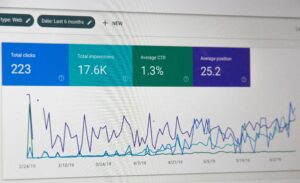


To run a Pingdom speed check, open the Pingdom website speed test, enter your page URL, choose a test location and start the test. The result shows a performance grade, load time, page size, number of requests and a waterfall of every file. Use it with our free website speed test for a second opinion.
Key takeaways
- The Pingdom speed test gives its own performance grade, which is different from the Lighthouse score in PageSpeed Insights.
- Choose a test location close to your main audience for more realistic results.
- Page size, requests and the waterfall show which files slow the page down.
- Test more than once and compare the same page over time.
How do you run a Pingdom speed check?
- Open the Pingdom website speed test in your browser.
- Paste the full URL of the page you want to test.
- Choose a test location.
- Start the test and wait for the results.
- Review the grade, load time, page size and requests, then open the waterfall.
What does the Pingdom result show?
- Performance grade: Pingdom’s own score, based on its checks. It is not the same as a Google PageSpeed score.
- Load time: how long the page took to load in the test.
- Page size and requests: the total weight of the page and the number of files it loads.
- Insights: suggestions about what to improve.
- Waterfall: a timeline of every file, showing which ones take longest.
How do you read the waterfall?
Each row is one file and each bar shows how long it took. Long bars are slow files, and rows that start late may be waiting on earlier ones. Look first at the largest images, scripts and third-party requests.
How do you fix the issues Pingdom finds?
- Start with the largest files in the waterfall.
- Compress and resize images. See how to optimize images for page speed.
- Enable caching and reduce server response time. See what a good TTFB is.
- Remove or defer scripts you do not need.
- Test again and compare.
For the full list, read how to improve website speed.
Pingdom vs PageSpeed Insights: which should you trust?
Both are useful but they measure different things. Pingdom gives its own grade and a waterfall for a chosen location. PageSpeed Insights gives Google’s Lighthouse score and real-user Core Web Vitals data. For SEO, use PageSpeed Insights and Search Console as your main source. See our Pingdom alternatives and the guide to the Core Web Vitals test.
Frequently asked questions
Is the Pingdom speed test free?
The website speed test can be used for free. Pingdom’s monitoring service is a paid product.
Why is my Pingdom grade different from PageSpeed Insights?
They use different scoring methods, locations and settings, so the numbers do not match.
Which test location should I choose?
Choose the location closest to most of your visitors.
What is a good Pingdom load time?
Faster is better, but real-user Core Web Vitals matter more for SEO. Aim for an LCP of 2.5 seconds or less (Google).
How often should I run a speed check?
Test after every theme, plugin or design change, and at least once a month.
Conclusion
A Pingdom speed check is quick: enter the URL, choose a location, read the grade and use the waterfall to find slow files. Confirm the result with Google’s tools and our free website speed test.