

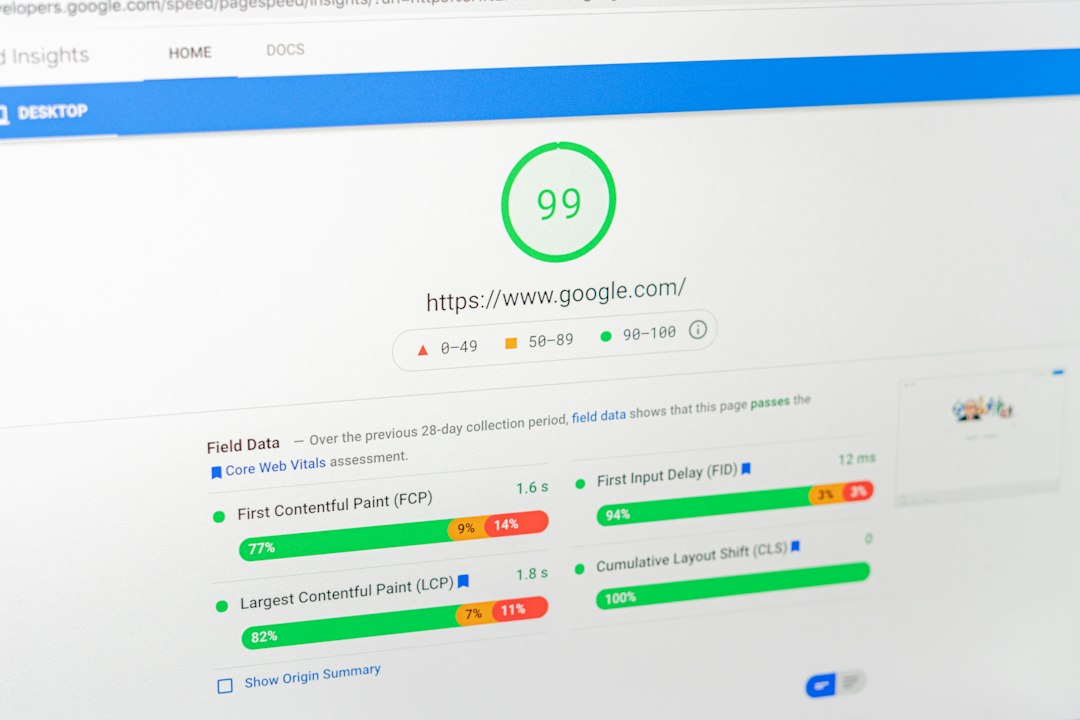
The PageSpeed Insights API lets a script test a page the same way the PageSpeed Insights website does and return the results as JSON. To use it, create an API key in Google Cloud, build a request URL with your page and strategy, send it and read the performance score from the response. For a quick one-off check, use our free website speed test instead.
Key takeaways
- The API returns lab results from Lighthouse and field data from real users when it is available.
- An API key is recommended for regular use. Check Google’s documentation for current quotas.
- The performance score in the JSON is a number from 0 to 1, so multiply by 100 to match the website.
- The API is useful for testing many URLs, such as in a spreadsheet or script.
What is the PageSpeed Insights API?
The PageSpeed Insights API is Google’s programmatic version of PageSpeed Insights. Instead of entering a URL in the web page, your code requests the results. This is useful for testing many pages, tracking scores over time or building your own reports. To learn the web version first, see how to use Google PageSpeed Insights.
How do you get a PageSpeed Insights API key?
- Sign in to Google Cloud Console and create a project, or choose an existing one.
- Enable the PageSpeed Insights API for that project.
- Open Credentials and create an API key.
- Copy the key and keep it private. Restrict it to the PageSpeed Insights API if the option is available.
Menu names in Google Cloud can change, so follow the current instructions in Google’s documentation if a step looks different.
How do you run a test with the API?
A basic request has three parts: the endpoint, the page URL and your key.
https://www.googleapis.com/pagespeedonline/v5/runPagespeed?url=https://example.com/&strategy=mobile&key=YOUR_API_KEYReplace the example URL with your page, and replace YOUR_API_KEY with your key. Use strategy=desktop for the desktop test.
Useful parameters
| Parameter | What it does |
|---|---|
| url | The page to test, including https |
| strategy | mobile or desktop |
| category | performance, accessibility, best-practices or seo. You can repeat it. |
| key | Your API key |
How do you read the API results?
The response is JSON. Two parts matter most for speed testing.
- lighthouseResult: the lab test. The performance score is under categories, as a value from 0 to 1.
- loadingExperience: real-user field data, when enough exists for the page.
Multiply the performance score by 100 to compare it with the website. The score can vary slightly between runs, as explained in our guide on PageSpeed Insights accuracy.
How do you test many URLs?
Loop through your list of URLs, send one request for each and write the score to a spreadsheet or file. Add a short pause between requests and keep within Google’s quotas. See our guide on bulk PageSpeed Insights testing for choosing the right method.
Common problems
- Quota errors: you sent too many requests. Slow down or check your quota in Google Cloud.
- Invalid key: check the key, the project and that the API is enabled.
- No field data: the page does not have enough real-user visits yet.
- Different from the website: small differences are normal because lab results vary.
Frequently asked questions
Is the PageSpeed Insights API free?
Google offers it for free use within quotas. Check Google’s documentation for current limits.
Do I need an API key?
For regular use, yes. A key helps with quotas and tracking your usage.
Can the API test mobile and desktop?
Yes. Use the strategy parameter and send one request for each.
Can the API test pages behind a login?
No. It can only test public URLs.
Why is my API score different from the website?
Both run Lighthouse, but lab results vary between runs. Test more than once and compare the pattern.
Conclusion
The PageSpeed Insights API turns a manual check into something you can automate: get a key, build the request, read the JSON and save the scores. Start with one page in our free website speed test, then use the API when you need many pages. For fixes, see how to improve website speed.