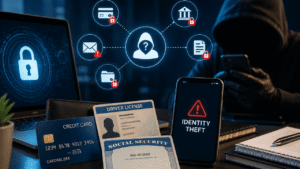

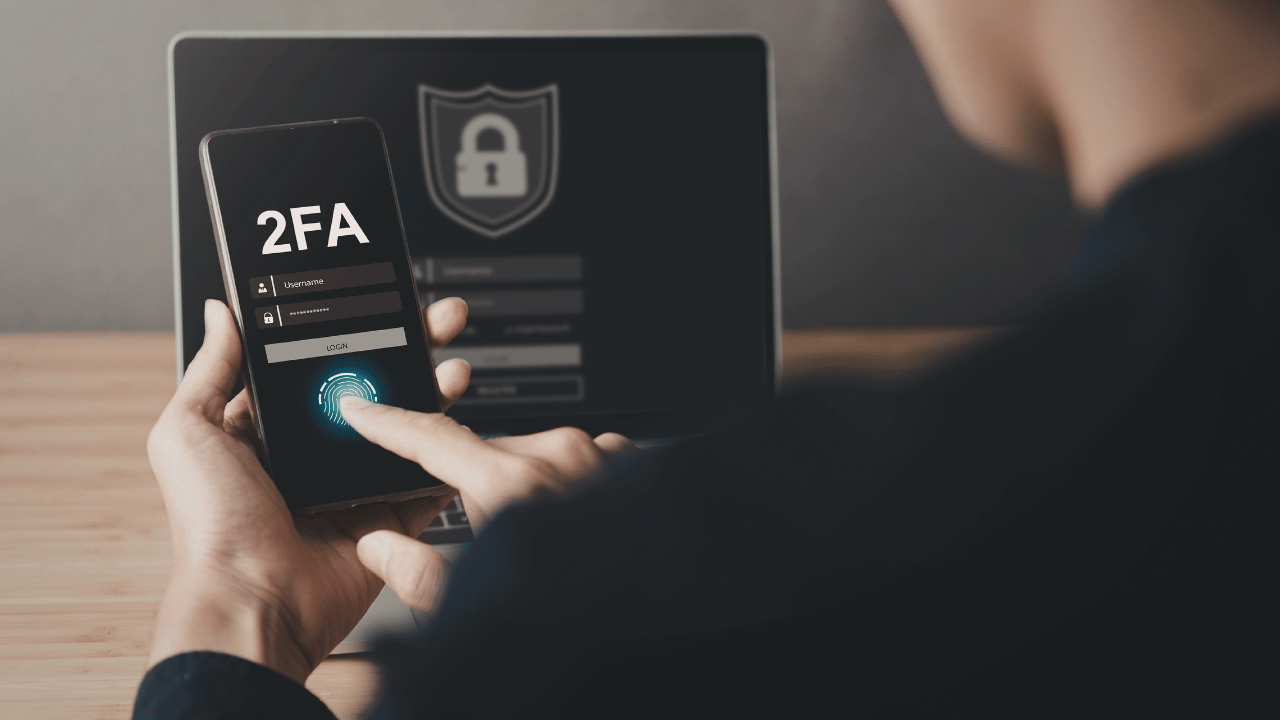
Your password alone is not enough to protect your accounts in 2026.
No matter how strong it is, your password can be stolen through phishing, data breaches, or keyloggers — without you ever knowing. According to Microsoft, enabling 2FA blocks 99.9% of automated account attacks. Yet despite being free and widely available, adoption rates remain stubbornly low — only about 30% of users enable 2FA even when it’s offered.
This guide explains exactly what two-factor authentication is, how each method works, which ones are actually secure, and step-by-step setup instructions for every major platform.
What Is Two-Factor Authentication (2FA)?
Two-factor authentication (2FA) secures your accounts with an extra layer of protection. Instead of just needing a password, 2FA requires an additional piece of information to log in. Even if a hacker acquires your password, your account will likely remain secure.
Think of it like a bank vault with two locks. Even if someone steals your key (password), they still can’t open the vault without the second key — which only you have on your phone.
When you set up two-factor authentication, your account requires two separate verifications: something you know (your password) and something you have — a code from an app on your phone, a physical hardware key, or a biometric confirmation. Even if an attacker obtains your password through a phishing attack or a data breach, they are blocked at the login screen without that second factor.
2FA vs MFA — What’s the Difference?
People often confuse 2FA and MFA. Here’s the simple difference:
| Term | Meaning |
|---|---|
| 2FA (Two-Factor Authentication) | Exactly 2 factors required |
| MFA (Multi-Factor Authentication) | 2 or more factors required |
| 2SV (Two-Step Verification) | Same as 2FA — just different name |
All 2FA is MFA — but not all MFA is 2FA. For everyday users, the terms mean the same thing practically.
The 3 Types of Authentication Factors
Every authentication method falls into one of three categories:
| Factor | What It Is | Examples |
|---|---|---|
| Something you know | Information only you know | Password, PIN, security questions |
| Something you have | Physical device you possess | Phone, hardware key, smart card |
| Something you are | Your biometric identity | Fingerprint, face ID, retina scan |
True 2FA combines two different factor types — usually “something you know” (password) + “something you have” (phone with authenticator app).
2FA Methods — From Weakest to Strongest
There are several different ways to implement 2FA. The second factor needed to access your account could be a code sent through SMS, email, or an authenticator app. Other common methods involve tapping a pop-up on your phone or using a physical key. Each method has advantages and disadvantages.
Here they are ranked from weakest to strongest:
1. SMS Text Message (Weakest)
A one-time code sent to your phone via text message.
How it works: You enter your password → site sends a 6-digit code to your phone → you enter the code.
Why it’s weak: SMS codes can be intercepted through SIM-swapping attacks — where hackers convince your mobile carrier to transfer your number to their SIM card. Once they have your number, they receive all your SMS codes.
Use it when: It’s the only option available. Any 2FA is better than no 2FA.
2. Email Codes (Weak)
A one-time code sent to your email.
Problem: If your email is already compromised, this provides no protection. Email codes are also slower and more inconvenient than other methods.
3. Authenticator Apps (Strong — Recommended)
A time-based code generated by an app on your phone — changes every 30 seconds.
How it works: You scan a QR code during setup → app generates a new 6-digit code every 30 seconds → you enter the current code to log in.
Why it’s strong: The code is generated locally on your device and never transmitted — making it immune to SIM-swapping attacks. Even if hackers intercept your network traffic, the code expires in 30 seconds.
Best authenticator apps in 2026:
- Google Authenticator — Simple, widely supported
- Microsoft Authenticator — Best for Microsoft accounts, supports push notifications
- Authy — Best for backup and multi-device sync
- 1Password / Bitwarden — Combines password manager + authenticator
4. Push Notifications / App Prompts (Strong)
A pop-up notification on your phone asking “Was this you?”
How it works: You enter your password → your phone shows a notification → you tap “Yes, it’s me” → access granted.
Example: Google Prompt — when you sign in to Gmail, your phone shows “Is it you trying to sign in?”
Why it’s strong: Requires physical access to your phone. But beware of “MFA fatigue attacks” — hackers sending dozens of approval requests until you accidentally tap “Yes.”
5. Hardware Security Keys (Strongest)
A physical USB or NFC device you plug in or tap to authenticate.
How it works: You plug the key into your computer (or tap it on your phone) when prompted — no codes to enter.
Examples: YubiKey, Google Titan Security Key
Why it’s the strongest: Physical devices like YubiKey or Titan Security Key — you plug them into your computer or tap them on your phone — are the most secure option available. They’re completely immune to phishing — even if you’re on a fake website, the key won’t authenticate.
Best for: High-value accounts, journalists, activists, business owners, anyone at high risk of targeted attacks.
6. Passkeys (Newest — Phishing Resistant)
The newest and most user-friendly strong authentication method.
How it works: Instead of a password + code, passkeys use your device’s biometrics (fingerprint or face) to verify your identity. No password, no code — just a touch or look.
Passkeys use your fingerprint or face to verify your identity. They’re 40% faster than passwords and nearly impossible to phish.
Supported by: Google, Apple, Microsoft, Amazon, PayPal, and hundreds of major services in 2026.
How to Set Up 2FA — Step by Step for Every Major Platform
Gmail / Google Account
Go to myaccount.google.com, select Security from the left panel, and click 2-Step Verification. Google will guide you through choosing between Google Prompt (a push approval on your trusted devices), an authenticator app, or a hardware security key. For the strongest protection, select an authenticator app or hardware key.
Steps:
- Go to myaccount.google.com
- Click Security in the left sidebar
- Click 2-Step Verification → Get started
- Choose your method — select Authenticator app for best security
- Scan the QR code with your authenticator app
- Enter the 6-digit code to confirm
- Save your backup codes — print or store safely
iPhone / Apple ID
Steps:
- Go to Settings → tap your name at the top
- Tap Sign-In & Security
- Tap Turn On Two-Factor Authentication
- Enter a trusted phone number
- Verify with the code sent to your phone
- Done — Apple will now send verification codes to your trusted devices
Facebook / Meta
Steps:
- Go to Settings & Privacy → Settings
- Click Accounts Centre → Password and Security
- Click Two-Factor Authentication
- Select your account → choose Authenticator App
- Scan the QR code in your authenticator app
- Enter the confirmation code
- Save your recovery codes
Steps:
- Open WhatsApp → Settings
- Tap Account → Two-Step Verification
- Tap Enable
- Create a 6-digit PIN you’ll remember
- Add a recovery email address (optional but recommended)
- Tap Done
Steps:
- Go to your profile → tap the 3 lines menu
- Tap Settings and activity → Accounts Centre
- Tap Password and Security → Two-Factor Authentication
- Select your account → choose Authentication App
- Follow setup instructions and save backup codes
Twitter / X
Steps:
- Go to Settings → Security and account access
- Click Security → Two-factor authentication
- Select Authentication app
- Scan the QR code in your authenticator app
- Enter the confirmation code
- Save your backup code
Microsoft / Outlook
Steps:
- Go to account.microsoft.com
- Click Security → Advanced security options
- Click Add a new way to sign in
- Choose Use an app → download Microsoft Authenticator
- Scan the QR code
- Approve the test notification
Best Authenticator Apps — Compared
| App | Free | Multi-Device | Backup | Best For |
|---|---|---|---|---|
| Google Authenticator | ✅ | ✅ (2022+) | ✅ Cloud | Simplicity |
| Microsoft Authenticator | ✅ | ✅ | ✅ Cloud | Microsoft users |
| Authy | ✅ | ✅ | ✅ Encrypted | Multi-device users |
| 1Password | ❌ ($3/mo) | ✅ | ✅ | Password + 2FA together |
| Bitwarden | ✅ | ✅ | ✅ | Open source users |
Recommendation for most people: Google Authenticator or Authy — both free, reliable, and widely supported.
The 2FA SECURE Checklist
Use an authenticator app or hardware key where possible. Enroll backup methods and export recovery codes immediately.
Use this checklist when setting up 2FA on any account:
- ☐ S — Select authenticator app or hardware key (not SMS)
- ☐ E — Export and save backup/recovery codes
- ☐ C — Confirm setup works by signing out and back in
- ☐ U — Update recovery email and phone number
- ☐ R — Record which accounts have 2FA enabled
- ☐ E — Enable 2FA on email account first — it’s the master key
What Happens If You Lose Your Phone?
The biggest fear with 2FA — getting locked out of your own accounts. Here’s how to prevent it:
1. Save backup codes Every major platform gives you 8-10 one-time backup codes during 2FA setup. Print them and store them somewhere safe (not in your email or Google Drive).
2. Set up multiple 2FA methods Add both an authenticator app AND SMS as a backup. If you lose your phone, SMS to a backup number still works.
3. Use Authy instead of Google Authenticator Authy stores encrypted backups in the cloud — if you lose your phone, reinstall Authy on a new phone and restore your accounts.
4. Keep a trusted device logged in Gmail and Apple allow “trusted devices” — devices that don’t require 2FA every time. Keep at least one trusted device that you don’t carry everywhere.
What 2FA Cannot Protect Against
2FA is powerful — but not invincible. Know its limits:
Real-time phishing attacks: Sophisticated phishing sites can capture your 2FA code in real time — forwarding it to the real site before it expires. Hardware security keys are immune to this; authenticator apps are not.
MFA fatigue attacks: Hackers repeatedly send push notification approvals until you accidentally tap “Yes.” The fix — set your authenticator to require a number match, not just a tap.
Malware on your device: If your phone has keylogging malware, attackers can capture codes as you type them.
SIM swapping (for SMS 2FA): As mentioned — switching to an authenticator app eliminates this risk entirely.
Which Accounts Should You Protect With 2FA First?
Priority order:
| Priority | Account | Why |
|---|---|---|
| 🔴 1st | Email (Gmail/Outlook) | Master key to all other accounts |
| 🔴 2nd | Banking & finance | Direct access to money |
| 🔴 3rd | Password manager | Protects all other passwords |
| 🟡 4th | Social media | Identity theft risk |
| 🟡 5th | Work accounts | Professional data |
| 🟢 6th | Shopping sites | Payment info stored |
| 🟢 7th | Streaming services | Lower priority |
Frequently Asked Questions
Q1: What is the difference between 2FA and two-step verification?
They mean the same thing. Two-step verification (2SV) is just another name for two-factor authentication (2FA). Both require a second proof of identity beyond your password.
Q2: Is SMS 2FA better than no 2FA?
Yes — absolutely. 2FA still matters. The form you choose matters even more. SMS is the weakest 2FA method due to SIM-swapping vulnerability, but it’s vastly better than relying on a password alone.
Q3: What is the best 2FA method in 2026?
Hardware security keys (YubiKey, Titan Key) are the strongest. For most everyday users, an authenticator app like Google Authenticator or Authy provides excellent protection that’s free and easy to use.
Q4: Can I be locked out of my account with 2FA enabled?
Yes — if you lose your phone and don’t have backup codes. Always save your backup codes during 2FA setup and consider using Authy for cloud-encrypted backup of your authenticator accounts.
Q5: What is a passkey and is it better than 2FA?
A passkey replaces both your password and 2FA with a single biometric verification (fingerprint or face). It’s more convenient and phishing-resistant. Where available, passkeys are the best option in 2026.
Q6: Does 2FA slow down logging in?
Slightly — typically 5-10 extra seconds. The security benefit far outweighs this minor inconvenience. Many platforms let you mark trusted devices so you only need 2FA on new devices.
Your 2FA Action Plan — Do This Today
Right now (5 minutes):
- Download Google Authenticator or Authy on your phone
- Go to myaccount.google.com → Security → Enable 2FA with the authenticator app
- Save your backup codes somewhere safe
This week (30 minutes):
- Enable 2FA on your banking apps
- Enable 2FA on Facebook, Instagram, Twitter
- Enable 2FA on your password manager
Ongoing:
- Enable 2FA on every new account you create
- Never use SMS 2FA if an authenticator app option is available
- Store backup codes for every account
Conclusion
Two-factor authentication is the single most effective step you can take to protect your online accounts after choosing a strong password. It takes 5 minutes to set up and blocks 99.9% of automated attacks.
Start with your email account right now — it’s the most important account you own. Everything else follows from there.